The Dying Light GamePackis packed with exclusive features including an awesome Auto Lockpick Mod - we didn't break a single lock in over 100 consecutive attempts! Other Mods include Auto Survivor Sense, Auto Sprint, Auto Pickup, Auto Loot, Safe Fall, ADS/Aim Remap/Assist, Jump Button Remap, Adjustable Rapid Fire, and Burst Fire.
We also invite you to join the Cronus Discord Channel - setup and run by members of the Cronus Community. There are several channels dedicated to GamePacks which offer live support and feedback, including direct support from senior members of the Cronus Community. Use this link to join our server: https://discord.gg/mJgQyM4
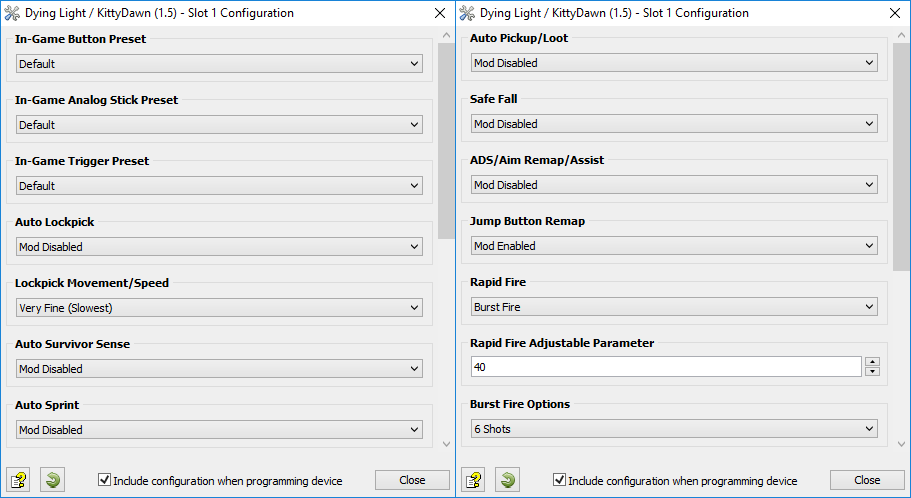
GamePack GCI Options
All GamePacks have Mods that can be tuned and customized to your preference.
This scripting engine is what makes the CronusMAX so powerful and extremely
popular with the gaming community. Gaming Mod configuration is now made more
accessible than ever before with the new GCI (GamePack Configuration Interface).
It pops up as soon as you program the GamePack to your Cronus (Video). Some Mods can
be directly enabled/disabled here, and some are disabled in-game by default,
but have several available options that can be set here and then enabled or
activated while in-game.
GamePack Setup
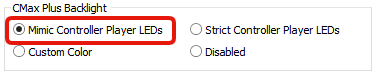
If you have a CronusMAX PLUS, open the Cronus PRO software and go to
Tools > Options > CMax Plus and enable "Mimic
Controller Player LEDs" for the backlight LED features to
work.
Class 1
In-Game Button Preset
Most
users play Dying Light using the default button preset but a lot of players do use the
optional Southpaw layout. With the In Game Button Preset you can make any of the Mods on
the CronusMAX PLUS work with your favorite preset, so select the option here which
matches your in game options and the GamePack will optimize all Mod Classes to your
preferred layout.
NOTE: This step is very important. If you don't select the correct layout that
you are using in game, the Mods in this GamePack will not work correctly.
Here you
let the GamePack know which stick layout you are using in game so it can optimize the
appropriate Mods.
NOTE:
This step is very important. If you don't select the correct layout that you are using
in game, the Mods in this GamePack will not work correctly.
Tell the
GamePack what your Trigger Preset settings you are using in game so it can adjust the
relevant Mods.
NOTE:
This step is very important. If you don't select the correct layout that you are using
in game, the Mods in this GamePack will not work correctly.
Tired
of breaking picks? If enabled, when you are ready to pick a lock, simply press LS/L3 and
RS/R3 at the same time and watch the CronusMAX PLUS do the work for you. This Mod has
been optimized for the Xbox One. Due to extra feedback this console gives us, we can
detect which direction the pick needs to be moved for a successful pick.
This
Mod will also automatically reduce the amount of movement the pick makes depending on
how close you are to the sweet spot.
IMPORTANT INFO
In Game vibration must be enabled for this Mod to operate.
Auto Lockpick is disabled when you move either of the sticks or press RS/R3
while it is running.
We've
given you the option of varying the adjustment amount of the lockpick here. We had 100%
success with it set to Average, however that may not work for you or your system so we
created the option to adjust how much the lockpick moves each attempt.
In
this game, you can hold the A button to scan the area for items, collectables and
enemies for example. It does get a bit tedious though to keep pressing the button when
you are searching for something. This Mod will automate the task for you. We have given
you two options, you can either hold the sense button down and the CronusMAX PLUS will
automatically keep pressing the button for you (Note, there is a delay before it starts
so the Mod will not interfere with other actions such as using a dead zombie to
camouflage yourself).
The
other option is to toggle the Mod On and Off. You can toggle it On in two ways, you can
hold the sense button for 3 seconds or, while holding the sense button, press UP on the
Directional Pad. When in toggle mode, your controller will rumble once to let you know
the Mod is active and will rumble twice to let you know it has been switched off. When
the Mod is active in toggle mode, simply press the sense button again to disable it.
IMPORTANT INFO
When in toggle mode, the Auto Survivor Sense Mod is
automatically disabled when you enter the items screen, pause screen, while
searching bodies, looting and when the Auto Lockpick Mod is active.
Hold the sense button for greater than 3 seconds to active the mod
2
Toggle Activation
Either hold the sense button for greater than 3 seconds and release or
while holding the sense button, press up on the Direction Pad to
activate the Mod. To disabled the Mod press A, Back/Select/View or
Touchpad.
This Mod
automates the task of pressing the Sprint button for you. For this Mod to be effective,
please ensure Classes 1-3 match your In Game settings. The Mod gives you two options,
Always On (The sprint button is pressed as soon at you push the movement stick forward)
and Press Sensitive (The sprint button is pushed when the movement stick is push all the
way).
Your character will sprint at the same time you begin to move him
forward.
2
Press Sensitive
Your character will sprint if the movement stick is FULLY pressed
forward. The character will walk regular speed if the movement stick is
only slightly pressed forward.
This
Mod automates the task of pressing the Looting button for you. It can either be enabled
for characters with or without the Nimble Hands Skill unlocked in the survivor skill
tree. Simply hold down the loot button to activate this Mod.
IMPORTANT INFO
There is a delay before this Mod starts so it doesn't
interfere with other game actions such as entering new areas/buildings.
This
Mod will turbo the crouch/slide button when it is held down. This is handy if you have
the Forward Roll Skill unlocked in the Agility Skill tree as it enabled you to fall from
a greater height that usual. This Mod makes the task of pressing the crouch button at
the correct time much easier.
Press and hold the Crouch button while falling and this Mod will turbo
the button for you, thus allowing you to fall from a greater height
(Forward Roll Skill Required)
We're
not a fan of pressing the stick to look down the sights when using a gun. So we created
this Mod which swaps your aim button with your Use Equipment button. It also removes the
toggle function of the Aim button. This has two affects, we think it makes it feel more
natural when using a gun and it also saves you from double clicking the button to aim
your melee weapons.
IMPORTANT INFO
While mods are active, hold Back/Select and press Y/Triangle
to Enable/Disable Quick Reload.
We
personally find it hard to get used to pressing a bumper/trigger button to jump.
Therefore we've given you the option to swap your jump button with the A/Cross button.
It makes more sense to to press A/Cross to jump.
You don't
want to be using guns much in this game as they make a lot of noise and draw unwanted
attention but we thought it would be helpful to be able to get any shots over and done
with quickly, so we added an adjustable Rapid Fire to this GamePack. It certainly helps
when you are dealing with living enemies!
With Adjustable Rapid Fire you can always get the optimum firepower for
your favorite weapon. See the menu system instructions above for more
information on how to adjust your Rapid Fire speed in this mode.
2
Burst Fire
This Mod enables Burst Fire mode, turning your automatic or single shot
weapons into a Burst Fire weapon. See Class 13 to set the Burst Fire
rate. See Class 13 for options.
When this GamePack is being used on a PlayStation 4 and detects the
connected controller is not a DualShock 4, it will automatically reassign
Touchpad to the Select/Back/View Button and enable a toggle to the PS4 Share
Screen.
Crossover
Shortcut to DualShock 4 Touchpad:
Toggle to
PlayStation 4 Share Screen:
Troubleshooting
If you find your GamePack isn't working correctly, the memory in the Cronus device where the settings are stored may have become corrupted. In this case, we recommend that you erase your memory slots using the Cronus Pro option in Tools > Device Cleanup > Erase Memory Slots. There will be an option to clear the memory slots in Cronus Pro. This step is not necessary, although recommended if you're not using the other slots.
If you're still having issues and want to check that your Cronus Device is functioning correctly with scripts, but you're not too sure how to test, we recommend you try out the easy to use Cronus Stress Test Script by Cronus Community senior staff member, Lex Lost.
Dying Light is a registered trademark or trademarks of Techland Sp. z o. o.. in the United States and/or other countries.
The “PS” Family logo is a registered trademark and “PS4” is a trademark of Sony Computer Entertainment Inc.
Microsoft, Xbox One and the Xbox logos are trademarks of the Microsoft group of companies.
Other product names used herein are for identification purposes only and might be trademarks of their respective companies. We disclaim any and all rights to those marks.