We also invite you to join the Cronus Discord Channel - setup and run by members of the Cronus Community. There are several channels dedicated to GamePacks which offer live support and feedback, including direct support from senior members of the Cronus Community. Use this link to join our server: https://discord.gg/mJgQyM4
GamePack GCI Options
All GamePacks have Mods that can be tuned and customized to your preference.
This scripting engine is what makes the CronusMAX so powerful and extremely
popular with the gaming community. Gaming Mod configuration is now made more
accessible than ever before with the new GCI (GamePack Configuration Interface).
It pops up as soon as you program the GamePack to your Cronus (Video). Some Mods can
be directly enabled/disabled here, and some are disabled in-game by default,
but have several available options that can be set here and then enabled or
activated while in-game.
SCREENSHOT PENDING
GamePack Setup
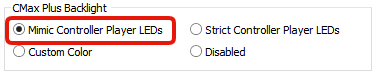
If you have a CronusMAX PLUS, open the Cronus PRO software and go to
Tools > Options > CMax Plus and enable "Mimic
Controller Player LEDs" for the backlight LED features to
work.
In-Game Control Scheme Layout
Setup Step 1
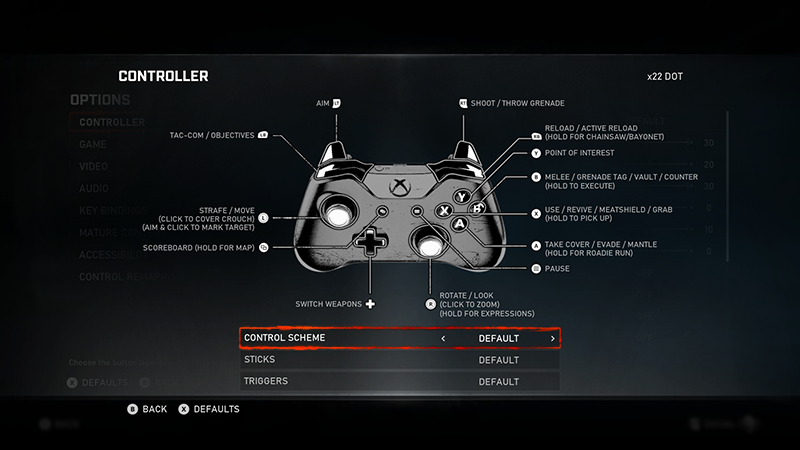
All default Gears 5 controller layout options are available in this GamePack. Use the GCI (see below) to select the one you are using, and
the GamePack will automatically adjust all the Mods to your preferred choice.
OPTIONS > CONTROLLER > CONTROL SCHEME
NOTE: This step is critical. If you don't select the correct button layout that you are using in-game, the Mods will not function correctly, especially Anti-Recoil. Use these game provided layouts for optimal GamePack performance.
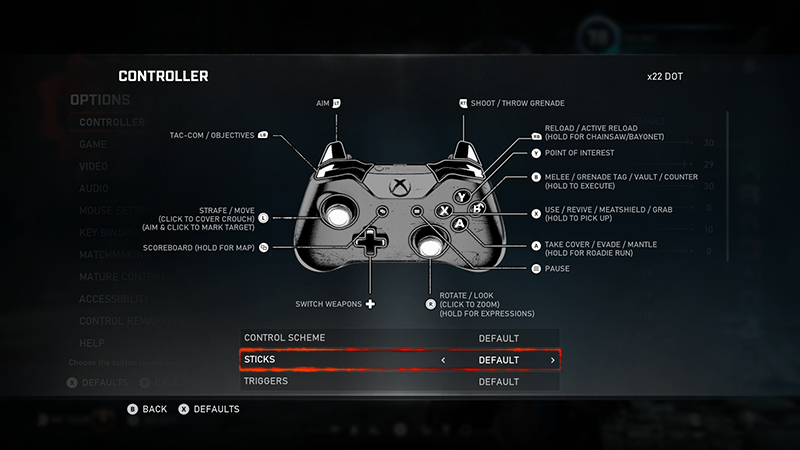
All default Gears 5 thumbstick layout options are available in this GamePack. Use the GCI (see below) to select the one you are using, and
the GamePack will automatically adjust all the Mods to your preferred choice.
OPTIONS > CONTROLLER > STICKS
NOTE: This step is critical. If you don't select the correct stick layout that you are using in-game, the Mods will not function correctly, especially Anti-Recoil. Use these game provided layouts for optimal GamePack performance.
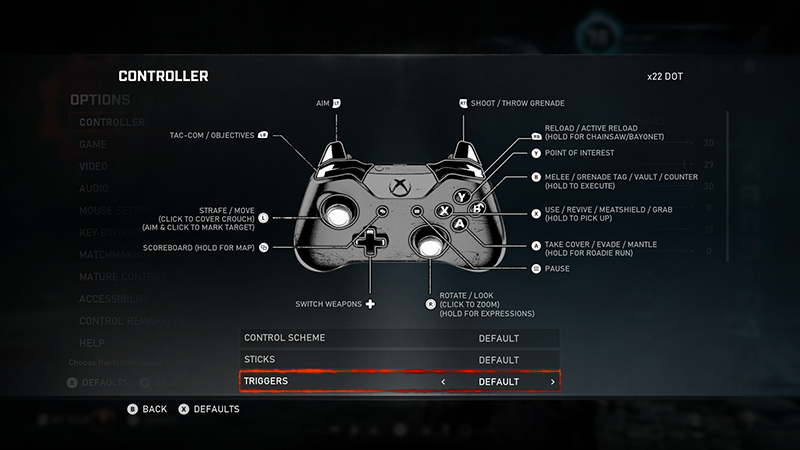
All default Gears 5 trigger layout options are available in this GamePack. Use the GCI (see below) to select the one you are using, and
the GamePack will automatically adjust all the Mods to your preferred choice.
OPTIONS > CONTROLLER > TRIGGERS
NOTE: This step is critical. If you don't select the correct trigger layout that you are using in-game, the Mods will not function correctly, especially Anti-Recoil. Use these game provided layouts for optimal GamePack performance.
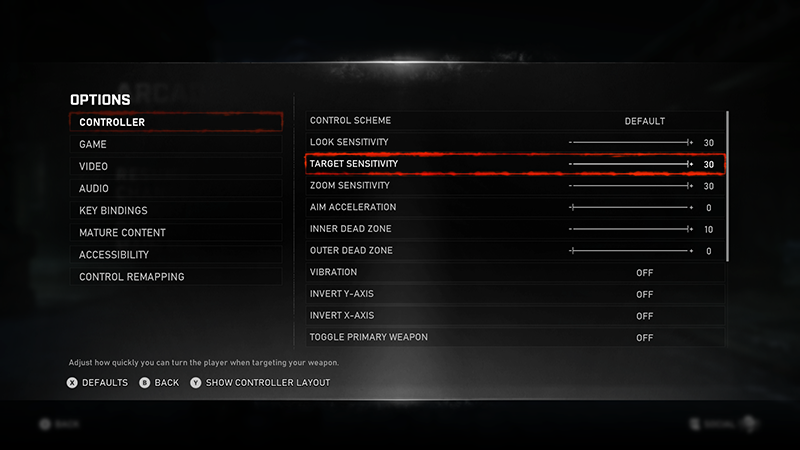
The Gears 5 Anti-Recoil Mod is linked to the In-Game Target Sensitivity, so the recoil weight is calculated automatically without any need to enter it yourself. Use the GCI (see below) to select the range you are using (image below shows '30' so you would select '23-30' in the GCI).
OPTIONS > CONTROLLER > TARGET SENSITIVITY
NOTE: This step is critical. If you don't select the correct value that you are using in-game, Anti-Recoil will not function correctly.
A great feature of GamePacks is that many of the Mods work together and can be enabled at the same time, making them especially potent. However, for maximum effect, some of them need to be quickly enabled/disabled during gameplay, depending on the type of Mod and its features. This requires what we call 'Toggles.'
Toggles are designed to give you the ability to instantly change the configuration of certain Mods that require fast access with a simple pre-configured button combo. Some Mods are 'Speed Toggles', and this means they can be enabled/disabled instantly while gaming and some are 'Menu Toggles,' which means you have to access the incredibly useful MOD Menu (see below). From there, you can change the configuration of multiple Mods without complicated button combos. When the MOD Menu is active (flashing blue Cronus LED), all Mods will be suspended to stop any interference with gameplay.
Speed Toggles also require a slightly longer press to prevent accidental triggering (only 500ms), and all toggles have rumble feedback and LED notifications. Some Mod options are set in the GCI and then Enabled or Disabled in-game using a toggle. You can also check the status of any Mod in the MOD Menu by merely pressing its activation button. For example, if Menu Toggle is LT+D-PAD UP, the activation button is D-PAD UP. When in the MOD Menu, press D-PAD UP and the LED will either flash Green or Red to tell you if the Mod is enabled or disabled.
Console
Enter MOD Menu
LED
Led: MOD Menu Open = Blink Blue.
Press Toggle again to save settings and exit.
Troubleshooting
If you find your GamePack isn't working correctly, the memory in the Cronus device where the settings are stored may have become corrupted. In this case, we recommend that you erase your memory slots using the Cronus Pro option in Tools > Device Cleanup > Erase Memory Slots. There will be an option to clear the memory slots in Cronus Pro. This step is not necessary, although recommended if you're not using the other slots.
If you're still having issues and want to check that your Cronus Device is functioning correctly with scripts, but you're not too sure how to test, we recommend you try out the easy to use Cronus Stress Test Script by Cronus Community senior staff member, Lex Lost.
Gears 5 and the Gears 5 logo are trademarks or registered trademarks of Microsoft Corporation in the US and/or other countries.
The “PS” Family logo is a registered trademark and “PS4” is a trademark of Sony Computer Entertainment Inc.
Microsoft, Xbox One and the Xbox logos are trademarks of the Microsoft group of companies.
Other product names used herein are for identification purposes only and might be trademarks of their respective companies. We disclaim any and all rights to those marks.