Introduction
|
|
|
GamePack Author(s): KittyDawn
Compatible CronusMAX Firmware: 1.24+
Compatible Controllers: Dualshock 4, Dualshock 3, Xbox One, Xbox 360, Wii U Pro
Compatible Systems: PlayStation 4, Xbox One, PlayStation 3, Xbox 360, and Microsoft Windows
The Grand Theft Auto V GamePack includes an advanced Anti-Recoil System and a great Auto Aim Mod to help fight your way around Los Santos. The GamePack also features Adjustable Rapid Fire, Adjustable Pulse Fire, Turbo Melee, Auto Arm Wrestling and Easy Jog and Sprint.
We also invite you to join the Cronus Discord Channel - setup and run by members of the Cronus Community. There are several channels dedicated to GamePacks which offer live support and feedback, including direct support from senior members of the Cronus Community. Use this link to join our server: https://discord.gg/mJgQyM4
|
|
|
GamePack GCI Options
|
|
|
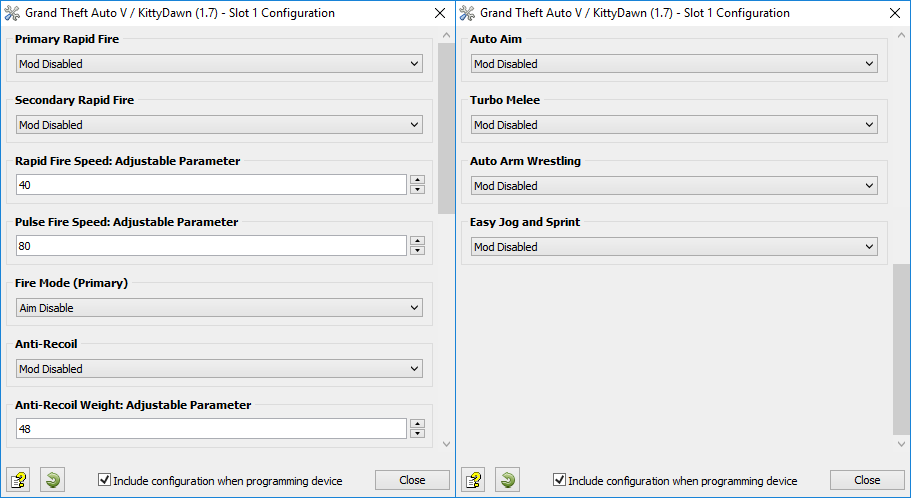
All GamePacks have Mods that can be tuned and customized to your preference. This scripting engine is what makes the CronusMAX so powerful and extremely popular with the gaming community. Gaming Mod configuration is now made more accessible than ever before with the new GCI (GamePack Configuration Interface). It pops up as soon as you program the GamePack to your Cronus ( Video). Some Mods can be directly enabled/disabled here, and some are disabled in-game by default, but have several available options that can be set here and then enabled or activated while in-game.
|
|
|
GamePack Setup
|
|
|
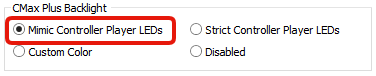
If you have a CronusMAX PLUS, open the Cronus PRO software and go to Tools > Options > CMax Plus and enable "Mimic Controller Player LEDs" for the backlight LED features to work.
|
|
|
|
|
Primary Rapid Fire
Mod 1 - Speed Toggle
|
When Primary Rapid Fire is enabled, you can turn virtually any semi-automatic weapon into a deadly, fully automatic weapon. This creates a very unique advantage for players using semi-automatic weapons and some shotguns too. Rapid Fire is not meant for fully automatic weapons, however it can have positive side effects such as reducing recoil, helping players conserve ammunition and achieve more headshots due to a slower, more controlled fire rate.
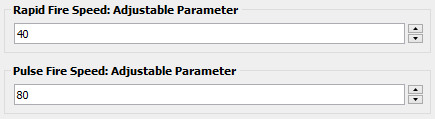
There are three options available: Optimized, Adjustable and Pulse. You can also customize how Rapid Fire/Pulse Fire is activated - see Fire Mode (Mod 3) below, and the Adjustable option allows you to enter a custom fire speed value. As always, timings depend on the type of weapon used and any add-ons or perks you may have. Adjustable Range for Rapid Fire is 20 - 500 (Default 40), and Pulse Fire is 20 - 500 (Default 80).
This Mod is disabled in-game by default; however, it can be enabled (or disabled) via a Speed Toggle during gameplay. Once enabled, the Mod will activate based on your GCI selection.
|
Console
|
Speed Toggle
|
|
|
|
|
|
|
|
|
|
|
|
|
|
|
|
All Rapid Fire Mods Enable/Disable
|
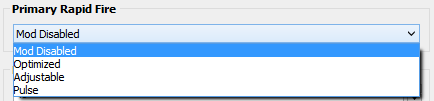
Select one of the following options for Primary Rapid Fire in the GCI, including the adjustable fire speeds (see images below). Note: This setting can only be applied in the GCI, not in-game, so whatever option you select here will always be the active choice whenever this Mod is in use.
|
Option
|
Name
|
Notes
|
|
|
Mod Disabled
|
|
|
|
Optimized
|
Optimized Rapid Fire is set to be as fast as possible, while ensuring every single shot is correctly registered by the game.
|
|
|
Adjustable
Adjustable
|
Adjustable Rapid Fire uses the custom speed you enter in the GCI (see image below).
|
|
|
Pulse
Adjustable
|
Pulse Fire can reach a faster rate of fire with burst type weapons. It also uses the custom speed you enter in the GCI (see image below).
|
|
|
|
Secondary Rapid Fire
Mod 2 - Speed Toggle
|
If Secondary Rapid Fire is enabled it will take place when Primary Rapid Fire is not actuating. For example if you set Primary Rapid Fire to be only active when using a scope (ADS) ( Mod 3, Option 2), then the Secondary Rapid Fire will be activated when you are not using scope. This behavior can be very handy to set a precise rate of fire while aiming and a more aggressive rate of fire while hip firing.
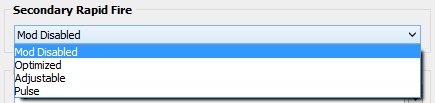
There are three options available: Optimized, Adjustable and Pulse. You can also customize how Rapid Fire/Pulse Fire is activated - see Fire Mode (Mod 3) below, and the Adjustable option allows you to enter a custom fire speed value. As always, timings depend on the type of weapon used and any add-ons or perks you may have. Adjustable Range for Rapid Fire is 20 - 500 (Default 40), and Pulse Fire is 20 - 500 (Default 80).
This Mod is disabled in-game by default; however, it can be enabled (or disabled) via a Speed Toggle during gameplay. Once enabled, the Mod will activate based on your GCI selection.
|
Console
|
Speed Toggle
|
|
|
|
|
|
|
|
|
|
|
|
|
|
|
|
All Rapid Fire Mods Enable/Disable
|
Select one of the following options for Secondary Rapid Fire in the GCI, including the adjustable fire speeds (see images below). Note: This setting can only be applied in the GCI, not in-game, so whatever option you select here will always be the active choice whenever this Mod is in use.
|
Option
|
Name
|
Notes
|
|
|
Mod Disabled
|
|
|
|
Optimized
|
Optimized Rapid Fire is set to be as fast as possible, while ensuring every single shot is correctly registered by the game.
|
|
|
Adjustable
Adjustable
|
Adjustable Rapid Fire uses the custom speed you enter in the GCI (see image below).
|
|
|
Pulse
Adjustable
|
Pulse Fire can reach a faster rate of fire with burst type weapons. It also uses the custom speed you enter in the GCI (see image below).
|
|
|
|
Fire Mode (Primary)
Mod 3
|
Select how Primary Weapon Rapid/Burst Fire ( Mod 1) is Activated. You can either have Rapid Fire or Burst Fire active as soon as you press the trigger or not until it is fully pressed. There are also options for Dual Independent and Dual Easy.
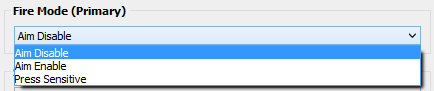
This Mod is set to Aim Disable by default; however, it can be changed in the GCI (see image below). There is no Toggle for this option so it cannot be changed during gameplay.
|
Option
|
Name
|
Notes
|
|
|
Aim Disable
|
The aim (ADS) disables Primary Rapid Fire.
|
|
|
Aim Enable
|
The aim (ADS) enables Primary Rapid Fire.
|
|
|
Press Sensitive
|
The Primary Rapid Fire Mod will only be activated by fully pressing the fire button.
|
|
|
|
Anti-Recoil
Mod 4 - Speed Toggle
|
The weapons in GTA V have quite a bit of kick, so you have to learn how to compensate with them. This Mod compensates for vertical recoil while firing a weapon by automatically moving the control stick in the opposite direction of the one your gun is moving while firing. The adjustable parameter sets how much the compensation should be.
Remember, there isn't a one-size-fits-all setup for Anti-Recoil sensitivity due to different weapons having different perks and attachments affecting weight distribution. We suggest you try different adjustable values for each weapon as this will help fine tune your weapon's recoil weight. Adjustable Range is 1 - 100 (Default 48). Don't forget to share your best settings with the Cronus Community.
This Mod is disabled in-game by default; however, it can be enabled (or disabled) via a Speed Toggle during gameplay. Once enabled, the Mod will activate anytime the Fire Trigger is pulled.
|
Console
|
Speed Toggle
|
|
|
|
|
|
|
|
|
|
|
|
Anti-Recoil Enable/Disable
|
Tip
|
|
|
If your weapon is moving UP when you fire, you need a LARGER number in the adjustable parameter.
If your weapon is moving DOWN when you fire, you need a SMALLER number in the adjustable parameter.
Remember, higher in-game sensitivity = lower Anti-Recoil values. In-Game sensitivity is usually cranked up to the max when using a mouse.
|
|
|
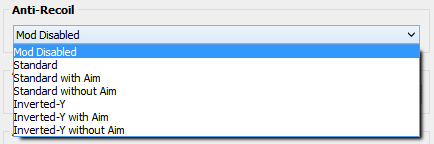
Select one of the following options for Anti-Recoil in the GCI, including the adjustable Anti-Recoil weight (see images below). Note: This setting can only be applied in the GCI, not in-game, so whatever option you select here will always be the active choice whenever this Mod is in use.
|
Option
|
Name
|
Notes
|
|
|
Mod Disabled
|
|
|
|
Standard
Adjustable
|
Anti-Recoil is activate while firing.
|
|
|
Standard with Aim
Adjustable
|
Anti-Recoil is activate while firing and aiming.
|
|
|
Standard without Aim
Adjustable
|
Anti-Recoil is activate while firing and NOT aiming.
|
|
|
Inverted-Y
Adjustable
|
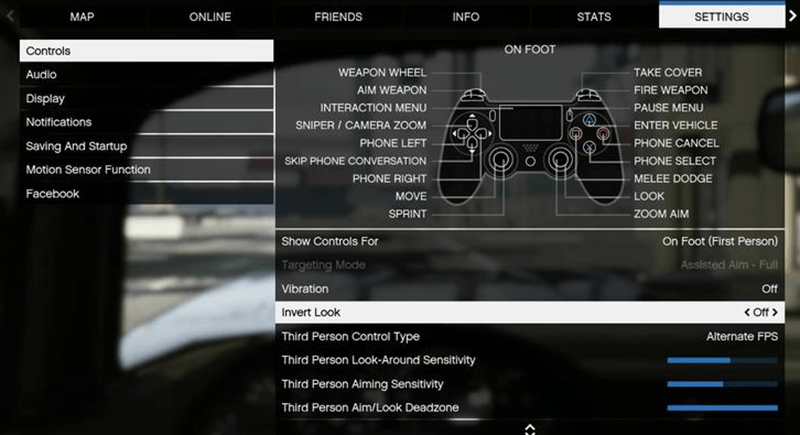
Anti-Recoil with Inverted-Y Axis is activated while firing (In-Game Setting 'Invert Look' to 'On' - see image below.)
|
|
|
Inverted-Y with Aim
Adjustable
|
Anti-Recoil with Inverted-Y Axis is activate while firing and aiming.
|
|
|
Inverted-Y without Aim
Adjustable
|
Anti-Recoil with Inverted-Y Axis is activate while firing and NOT aiming.
|
MENU/OPTIONS BUTTON> SETTINGS > CONTROLS > INVERT LOOK
|
|
|
Auto Aim
Mod 5 - Speed Toggle
|
The Auto Aim Mod uses an exploit in the game that will try to lock on to the nearest target when you aim and fire.
This Mod is disabled in-game by default; however, it can be enabled (or disabled) via a Speed Toggle during gameplay. Once enabled, the Mod will activate anytime the Fire Trigger is pulled.
|
Console
|
Speed Toggle
|
|
|
|
|
|
|
|
|
|
|
|
Anti-Recoil Enable/Disable
|
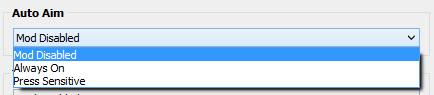
Select one of the following options for Auto Aim in the GCI. Note: This setting can only be applied in the GCI, not in-game, so whatever option you select here will always be the active choice whenever this Mod is in use.
|
Option
|
Name
|
Notes
|
|
|
Mod Disabled
|
|
|
|
Always On
|
Auto-Aim is activated when the fire button is pressed.
|
|
|
Press Sensitive
|
Auto-Aim is only activated when the fire button is FULLY pressed.
|
|
|
|
Turbo Melee
Mod 6 - Speed Toggle
|
Sometimes in GTA V, you need to press the 'Melee' button repetitively. This Mod automates this task by assigning a turbo mode to the Melee button. Once activated, all you need to do is press your melee attack button. Get ready for knife kill sprees.
This Mod is disabled in-game by default; however, it can be enabled (or disabled) via a Speed Toggle during gameplay.
|
Console
|
Speed Toggle
|
|
|
|
|
|
|
|
|
|
|
|
Anti-Recoil Enable/Disable
|
Set the following option for Turbo Melee in the GCI (see image below).
|
Option
|
Name
|
|
|
Mod Disabled
|
|
|
Mod Enabled
|
|
|
|
Auto Arm Wrestling
Mod 7 - Speed Toggle
|
Win every Arm Wrestling mini-game. This Mod automatically moves the analog stick left-and-right as fast as possible.
Activate by pressing and holding the RS/R3 button for 2 seconds. Deactivate by quickly pressing and releasing the RS/R3 button.
|
Console
|
Activate
|
|
|
|
|
|
|
|
Hold 2 Seconds = Enable
Tap = Disable
|
Set the following option for Auto Arm Wrestling in the GCI (see image below).
|
Option
|
Name
|
|
|
Mod Disabled
|
|
|
Mod Enabled
|
|
If you are tired of constantly pressing the left analog stick to make your character sprint, Easy Jog & Sprint is all you need.
This Mod is disabled by default; however, it can be enabled in the GCI (see image below). There is no Toggle for this option so it cannot be changed during gameplay.
|
#
|
Name
|
Description
|
|
|
Mod Disabled
|
|
|
|
Mod Enabled
|
Push the movement stick forward and press the sprint button once to jog. Press the sprint button a second time to sprint. Release the stick to stop jogging/sprinting.
|
|
Utility Toggles
|
|
|
Utility toggles are designed to give you additional control of the GamePack in real-time. A simple tap of a pre-configured button combo and the toggle is instantly activated. All toggles have rumble feedback and LED notifications if enabled.
|
|
|
|
|
Global Killswitch
Utility 1 - Speed Toggle
|
Quickly enable or disable the entire GamePack with this convenient killswitch toggle.
|
Console
|
Speed Toggle
|
LED
|
|
|
|
|
|
|
|
|
|
|
|
|
|
|
|
|
|
|
|
|
|
|
|
|
|
|
|
|
|
|
Led: GamePack On = Pink LED
GamePack Off = Blue LED
| |
Automatic PS4 Crossover
|
|
|
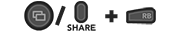
When this GamePack is being used on a PlayStation 4 and detects the connected controller is not a DualShock 4, it will automatically reassign Touchpad to the Select/Back/View Button and enable a toggle to the PS4 Share Screen.
|
|
|
Crossover Shortcut to DualShock 4 Touchpad:
Toggle to PlayStation 4 Share Screen:
Troubleshooting
|
|
|
If you find your GamePack isn't working correctly, the memory in the Cronus device where the settings are stored may have become corrupted. In this case, we recommend that you erase your memory slots using the Cronus Pro option in Tools > Device Cleanup > Erase Memory Slots. There will be an option to clear the memory slots in Cronus Pro. This step is not necessary, although recommended if you're not using the other slots.
If you're still having issues and want to check that your Cronus Device is functioning correctly with scripts, but you're not too sure how to test, we recommend you try out the easy to use Cronus Stress Test Script by Cronus Community senior staff member, Lex Lost.
|
|
|
GTA V GamePack - Toggle Cheat Sheet
|
|
SPEED TOGGLES
|
|
Primary & Secondary Rapid Fire
Anti-Recoil
Auto Aim
Turbo Melee
|
|
UTILITY TOGGLES
|
|
Utilities
PS4 Share Screen
(Crossover Controllers)
Global Kill Switch
|
GTA, Grand Theft Auto, and the Grand Theft Auto logo are registered or unregistered trademarks of Rockstar Games, Inc. in the U.S. and/or other countries.
The “PS” Family logo is a registered trademark and “PS4” is a trademark of Sony Computer Entertainment Inc.
Microsoft, Xbox One and the Xbox logos are trademarks of the Microsoft group of companies.
Other product names used herein are for identification purposes only and might be trademarks of their respective companies. We disclaim any and all rights to those marks.
|