Mortal Kombat 9 Finalizations
The Mortal Kombat 9 Finalizations GamePack for CronusMAX PLUS features all Characters and Stage finalizations. The finalization can be a Fatality, Babality or Stage Fatality, and it's a special finishing move that can be used against one's opponent at the end of the final match. When the announcer says "Finish Him" or "Finish Her" the player can choose to kill him or her through a finalization move. A finalization requires certain distances and quick button sequences in order to achieve the desired result. For example, one of Sub-Zero's Fatalities requires that he stands close to the opponent and quickly execute Back, Forward, Down, Forward, Kick. Every character has their own special Fatality that must be performed at a certain distance from the opponent, if input correctly, the background will darken, followed by the desired result.
The Mortal Kombat 9 Finalizations GamePack simplifies and standardizes the way each finalization is started by just a combinations of 2 buttons pressing. For any character chosen by the player, the GamePack will know the exactly distance and sequence must be executed to perform the desired finalization.
Compatible CronusMAX PLUS Firmware: 1.24+
Compatible Controllers: Dualshock 4, Dualshock 3, Xbox One, Xbox 360, Wii U Pro
Compatible Systems: Playstation 3, Xbox 360 and Windows PC
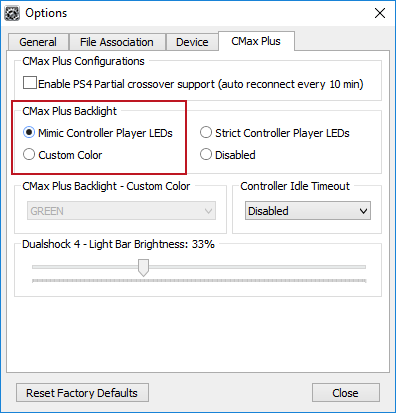
If you have a CronusMAX PLUS, make sure you goto Tools > Options > CMax Plus and enable "Mimic Controller Player LEDs" in the CMax Plus Backlight area if you want the CronusMAX PLUS Backlight LED features to work. Also, for more information on the benefits of using a USB Hub with your CronusMAX PLUS Click Here
GamePack Operation |
Quick Disable/Re-Enable GamePack:
 |
 |
 |
 |
 |
|
|
 |
 |
|
 |
 |
 |
|
 |
 |
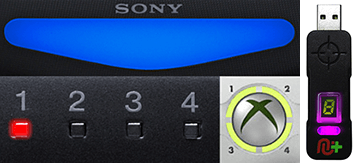 |
Player LED 1: No character is selected. Controller in regular mode. (Blue on DS4 / CronusMAX PLUS Backlight LED).
Player LED 4: A character is selected. To check the character number, enter into GamePack Menu Mode. (Pink on DS4 / CronusMAX PLUS Backlight LED).
|
Character Selection Shortcuts:
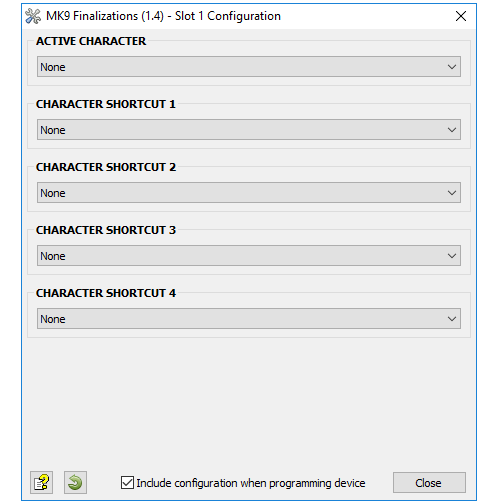
You can configure up to 4 shortcuts for fast changing between your favorite characters. Check the GamePack Configuration section below to see how to configure each shortcut via the controller or via the GamePack Configuration Interface (GCI).
You can configure up to 4 shortcuts for fast changing between your favorite characters. Check the GamePack Configuration section below to see how to configure each shortcut via the controller or via the GamePack Configuration Interface (GCI).
Character Shortcut 1
|
|
|
 |
|
LED 1 will blink 3 times
|
|
|
|
|
|
LED Blue will blink 3 times
|
|
|
|
 |
|
LED 1 will blink 3 times
|
|
|
|
|
|
CronusMAX PLUS LED Blue will blink 3 times
|
Character Shortcut 2
|
|
|
 |
|
LED 2 will blink 3 times
|
|
|
|
|
|
LED Red will blink 3 times
|
|
|
|
 |
|
LED 2 will blink 3 times
|
|
|
|
|
|
CronusMAX PLUS LED Red will blink 3 times
|
Character Shortcut 3
|
|
|
 |
|
LED 3 will blink 3 times
|
|
|
|
|
|
LED Green will blink 3 times
|
|
|
|
 |
|
LED 3 will blink 3 times
|
|
|
|
|
|
CronusMAX PLUS LED Green will blink 3 times
|
Character Shortcut 4
|
|
|
|
|
LED 4 will blink 3 times
|
|
|
|
|
|
LED Pink will blink 3 times
|
|
|
|
|
|
LED 4 will blink 3 times
|
|
|
|
|
|
CronusMAX PLUS LED Pink will blink 3 times
|
GamePack Configuration |
GCI (GamePack Configuration Interface) Operation:
All GamePacks have Mods that can be tuned and customized to your own preference. This is what makes the CronusMAX so powerful and extremely popular with the gaming community. The settings are usually made using the controllers built in GamePack Menu Mode, as explained below. However, there is a much easier and quicker method via the new GCI (GamePack Configuration Interface).
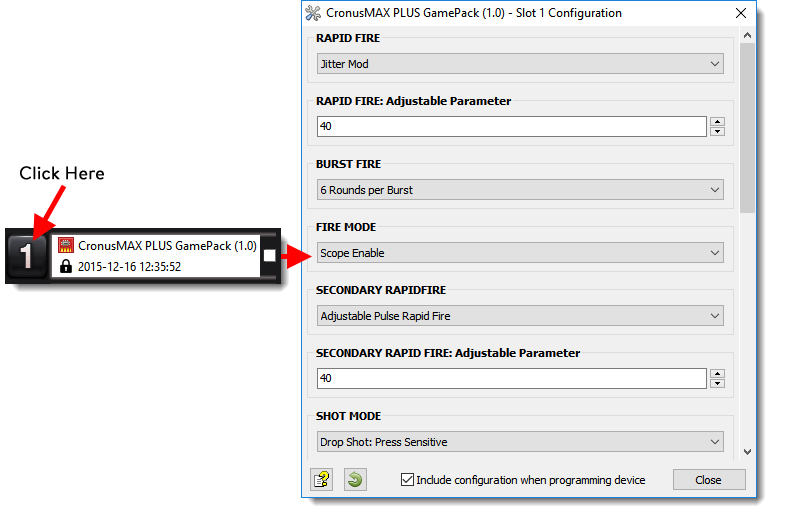
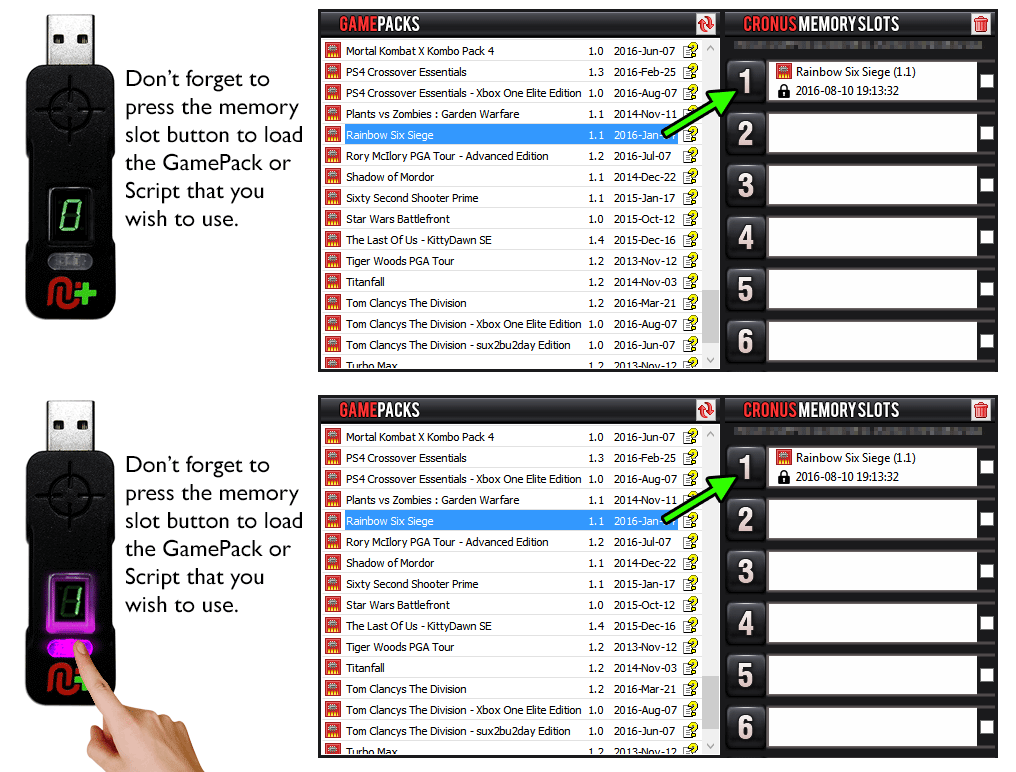
Pre-configure your GamePack settings using the GamePack Configuration Interface (GCI) in the Cronus PRO software. The GCI opens automatically when you load a GamePack to a memory slot, or you can simply click on the memory slot number to the left of the loaded GamePack to open the GCI. As soon as you select your preferred settings, close the GCI and click the PROGRAM DEVICE button. To select the GamePack you wish to use on your console, press the Memory Slot button on the CronusMAX PLUS so that it highlights the corresponding number on the LED (so if you have a GamePack loaded to Memory Slot 1, the LED on the CronusMAX PLUS should display the number 1).
How to Enter GamePack Menu Mode:
Note: The Menu is navigated via the CronusMAX PLUS LED System and also the controller's Player Number LED's if available. It is not an on-screen menu. Click Here for an instructional video.
|
|
|
 |
|
Hold SELECT+START for 2 seconds to enter menu mode.
|
|
|
|
 |
|
Hold SHARE+OPTIONS for 2 seconds to enter menu mode*
|
|
|
|
 |
|
Hold BACK+START for 2 seconds to enter menu mode.
|
|
|
|
 |
|
Hold VIEW+MENU for 2 seconds to enter menu mode.
|
Always keep the SELECT / SHARE / BACK / VIEW button pressed while in Menu Mode. To exit Menu mode, release the SELECT / SHARE / BACK / VIEW button.
|
|
Player LED 3 and Player LED 4 will blink the number of the currently selected character.
DualShock 3 Controller: If LED 4 blinks 2 times and LED 3 blinks 7 times, the selected character is 27 (Mileena)
DualShock 4 Controller: If LED Pink blinks 1 time and LED Green blinks 2 times, the selected character is 12 (Liu Kang)
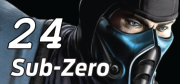
Xbox 360 Controller: If LED 3 blinks 2 times and LED 4 blinks 4 times, the selected character is 24 (Sub-Zero)
Xbox One Controller: If CronusMAX PLUS LED Green blinks 3 times and CronusMAX PLUS LED Pink blinks 1 time, the selected character is 31 (Sonya)
Note: If the Player LED 3 is not blinking, it means either no character is loaded or the gamepack is disabled. See below for instructions how to navigate between characters.
|
To Navigate Between Characters:
|
|
To add +10 from current character number.
|
|
To subtract -10 from current character number.
|
|
|
To add +1 from current character number.
|
|
To subtract -1 from current character number.
|
Character Shortcut Configuration:
In Menu Mode hold RT/R2 until all LED's are off, then....
In Menu Mode hold RT/R2 until all LED's are off, then....
 |
|
|
To save the current character selection into shortcut 1.
LED 1 will blink 3 times.
DS4/CronusMAX PLUS LED: Blue
|
|
|
|
|
To save the current character selection into shortcut 2.
LED 2 will blink 3 times.
DS4/CronusMAX PLUS LED: Red
|
|
|
|
|
To save the current character selection into shortcut 3.
LED 3 will blink 3 times.
DS4/CronusMAX PLUS LED: Green
|
|
|
|
|
To save the current character selection into shortcut 4.
LED 4 will blink 3 times.
DS4/CronusMAX PLUS LED: Pink
|
GamePack Classes and Mods |

Character Numbers |