Mortal Kombat X DLC Kombo Pack
Welcome to the second Mortal Kombat X DLC Kombo Pack, exclusive to the CronusMAX PLUS. This GamePack has a choice between Jason Voorhees (Slasher Variant), Tanya (Kobu Jitsu Variant), Predator (Hunter Variant) and Tremor (Crystalline Variant). The pack contains 4 Kombos and 2 Fatalities for each of the 4 Characters. That's a total of 24 Kombos! Each Kombo can be activated quickly by moving the Right Analog Stick (or pressing the RS/Custom button and moving the direction stick on a FightStick) and is stopped by simply allowing the stick to return to it's rest position.
A very special thanks to Koara for creating the Kombo's and to GPC scripting legend, KittyDawn (Andrew) for creating and optimizing the GamePack.
Compatible CronusMAX PLUS Firmware: 1.24+
Compatible Controllers: Dualshock 4, Dualshock 3, Xbox One, Xbox 360, Wii U Pro
Compatible Systems: Playstation 4, Xbox One and Windows PC
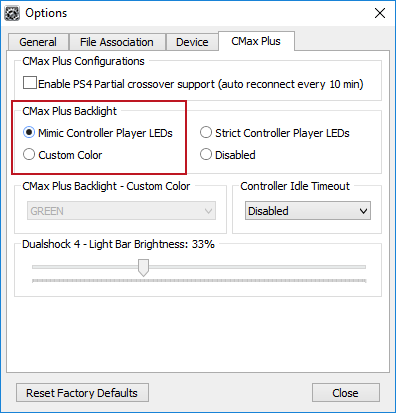
If you have a CronusMAX PLUS, make sure you goto Tools > Options > CMax Plus and enable "Mimic Controller Player LEDs" in the CMax Plus Backlight area if you want the CronusMAX PLUS Backlight LED features to work. Also, for more information on the benefits of using a USB Hub with your CronusMAX PLUS Click Here
GamePack Operation |
Quick Disable/Re-Enable GamePack:
 |
 |
 |
 |
 |
|
 |
 |
 |
|
 |
 |
 |
|
 |
 |
Character Selection Shortcuts
You can easily select each of the four characters by simple 2 button shortcuts on your controller and you can easily distinguish which character is live at that time by the CronusMAX Black Light LED color, DS4 Lightbar LED color or Player LED number.
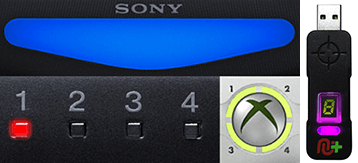 |
Player LED 1: Character 1 is selected. (Blue on DS4 Lightbar / CronusMAX PLUS Backlight LED).
Player LED 2: Character 2 is selected. (Red on DS4 Lightbar / CronusMAX PLUS Backlight LED).
Player LED 3: Character 3 is selected. (Green on DS4 Lightbar / CronusMAX PLUS Backlight LED).
Player LED 4: Character 4 is selected. (Pink on DS4 Lightbar / CronusMAX PLUS Backlight LED).
|
Character Selection 1 - Jason Vorhees (Slasher Variant)
|
|
|
 |
|
CronusMAX PLUS Backlight LED Blue / Player 1 LED
|
|
|
|
|
|
DS4 Lightbar / CronusMAX PLUS Backlight LED Blue
|
|
|
|
 |
|
CronusMAX PLUS Backlight LED Blue / Player 1 LED
|
|
|
|
|
|
CronusMAX PLUS Backlight LED Blue
|
Character Selection 2 - Tanya (Kobu Jutsu Variant)
|
|
|
 |
|
CronusMAX PLUS Backlight LED Red / Player 2 LED
|
|
|
|
|
|
DS4 Lightbar / CronusMAX PLUS Backlight LED Red
|
|
|
|
 |
|
CronusMAX PLUS Backlight LED Red / Player 2 LED
|
|
|
|
 |
|
CronusMAX PLUS Backlight LED Red
|
Character Selection 3 - Predator (Hunter Variant)
|
|
|
 |
|
CronusMAX PLUS Backlight LED Green / Player 3 LED
|
|
|
|
|
|
DS4 Lightbar / CronusMAX PLUS Backlight LED Green
|
|
|
|
 |
|
CronusMAX PLUS Backlight LED Green / Player 3 LED
|
|
|
|
 |
|
CronusMAX PLUS Backlight LED Green
|
Character Selection 4 - Tremor (Crystalline Variant)
|
|
|
 |
|
CronusMAX PLUS Backlight LED Pink / Player 4 LED
|
|
|
|
|
|
DS4 Lightbar / CronusMAX PLUS Backlight LED Pink
|
|
|
|
 |
|
CronusMAX PLUS Backlight LED Pink / Player 4 LED
|
|
|
|
 |
|
CronusMAX PLUS Backlight LED Pink
|
GamePack Configuration |
GCI (GamePack Configuration Interface) Operation:
All GamePacks have Mods that can be tuned and customized to your own preference. This is what makes the CronusMAX so powerful and extremely popular with the gaming community. The settings are usually made using the controllers built in GamePack Menu Mode, as explained below. However, there is a much easier and quicker method via the new GCI (GamePack Configuration Interface).
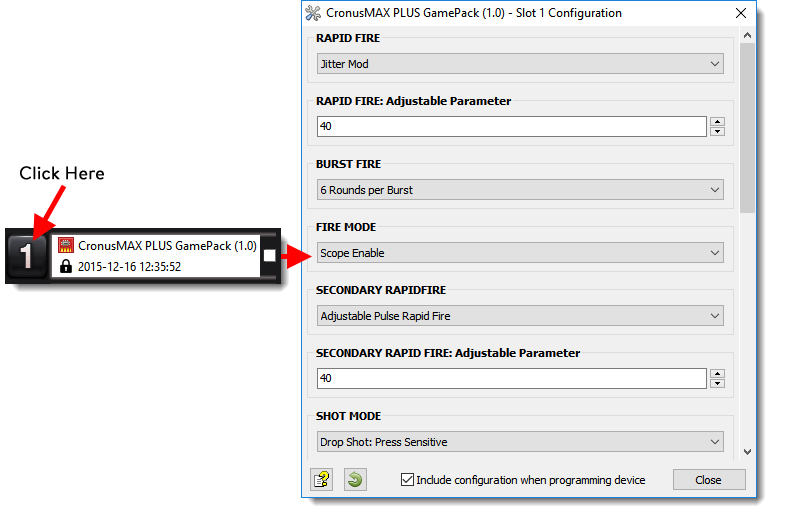
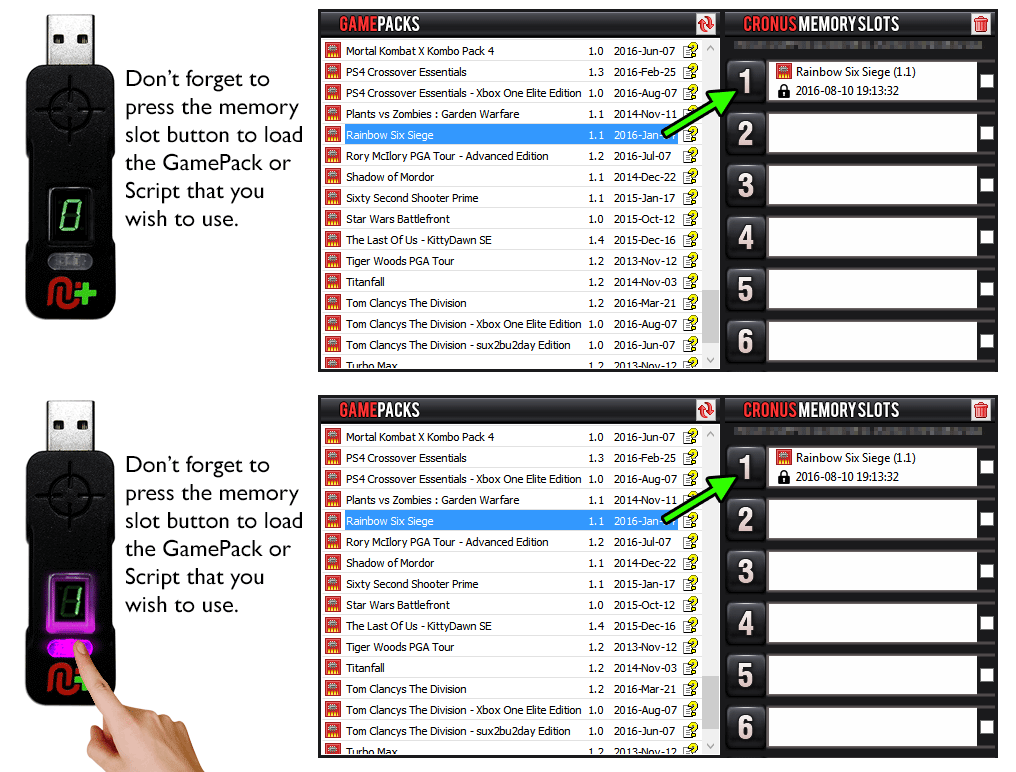
Pre-configure your GamePack settings using the GamePack Configuration Interface (GCI) in the Cronus PRO software. The GCI opens automatically when you load a GamePack to a memory slot, or you can simply click on the memory slot number to the left of the loaded GamePack to open the GCI. As soon as you select your preferred settings, close the GCI and click the PROGRAM DEVICE button. To select the GamePack you wish to use on your console, press the Memory Slot button on the CronusMAX PLUS so that it highlights the corresponding number on the LED (so if you have a GamePack loaded to Memory Slot 1, the LED on the CronusMAX PLUS should display the number 1).
How to Enter GamePack Menu Mode:
Note: The Menu is navigated via the CronusMAX PLUS LED System and also the controller's Player Number LED's if available. It is not an on-screen menu. Click Here for an instructional video.
|
|
|
|
|
Hold SELECT+START for 2 seconds to enter menu mode.
|
|
|
|
|
|
Hold SHARE+OPTIONS for 2 seconds to enter menu mode*
|
|
|
|
|
|
Hold BACK+START for 2 seconds to enter menu mode.
|
|
|
|
|
|
Hold VIEW+MENU for 2 seconds to enter menu mode.
|
Always keep the SELECT / SHARE / BACK / VIEW button pressed while in Menu Mode. To exit Menu mode, release the SELECT / SHARE / BACK / VIEW button.
GamePack Classes and Mods |
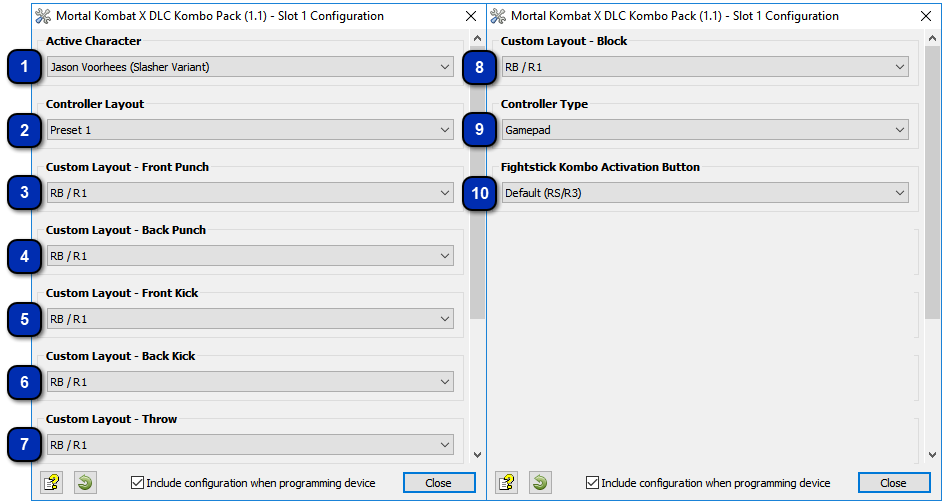





Choose which button you would like to hold to turn your FightStick's direction control into kombo activators. The default button is RS, if you are using an older Stick which doesn't have the LS and RS buttons, you can choose an alternative button here.
|


Quick Reference: Classes and Mods |
|
01: ACTIVE CHARACTER
|
02: CONTROLLER LAYOUT
|
03: CUSTOM LAYOUT - FRONT PUNCH
|
|
00: Jason Voorhees (Slasher Variant)
01: Tanya (Kobu Jitsu Variant)
02: Predator (Hunter Variant)
03: Tremor (Crystalline Variant)
|
01: Preset 1
02: Preset 2
03: Preset 3
04: Preset 4
05: Custom Layout
See Classes 3 - 8 For Custom Layout Options
|
01: RB/R1
02: RT/R2
03: LB/L1
04: LT/L2
05: Y/TRIANGLE
06: B/CIRCLE
07: A/CROSS
08: X/SQUARE
|
|
04: CUSTOM LAYOUT - BACK PUNCH
|
05: CUSTOM LAYOUT - FRONT KICK
|
06: CUSTOM LAYOUT - BACK KICK
|
|
01: RB/R1
02: RT/R2
03: LB/L1
04: LT/L2
05: Y/TRIANGLE
06: B/CIRCLE
07: A/CROSS
08: X/SQUARE
|
01: RB/R1
02: RT/R2
03: LB/L1
04: LT/L2
05: Y/TRIANGLE
06: B/CIRCLE
07: A/CROSS
08: X/SQUARE
|
01: RB/R1
02: RT/R2
03: LB/L1
04: LT/L2
05: Y/TRIANGLE
06: B/CIRCLE
07: A/CROSS
08: X/SQUARE
|
|
07: CUSTOM LAYOUT - THROW
|
08: CUSTOM LAYOUT - BLOCK
|
09: CONTROLLER TYPE
|
|
01: RB/R1
02: RT/R2
03: LB/L1
04: LT/L2
05: Y/TRIANGLE
06: B/CIRCLE
07: A/CROSS
08: X/SQUARE
|
01: RB/R1
02: RT/R2
03: LB/L1
04: LT/L2
05: Y/TRIANGLE
06: B/CIRCLE
07: A/CROSS
08: X/SQUARE
|
00: Gamepad
01: FightStick
|
|
10: FIGHTSTICK CUSTOM ACTIVATION
|
|
|
|
00: Default (RS / R3)
01: RB / R1
02: RT / R2
03: RS / R3
04: LB / L1
05: LT / L2
06: LS / L3
07: Y / TRIANGLE
08: B / CIRCLE
09: A / CROSS
10: X / SQUARE
|
|
|