GamePack Operation |
 |
 |
 |
 |
 |
|
|
 |
 |
|
 |
 |
 |
|
 |
 |
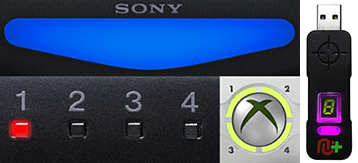 |
Player LED 1: Controller in regular mode, the GamePack is
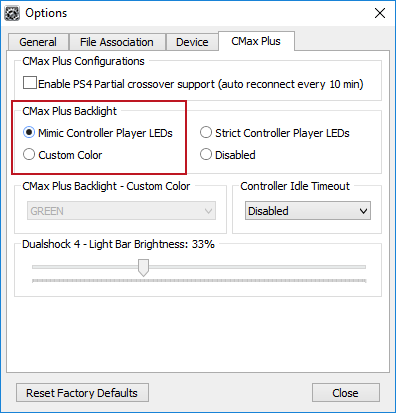
Disabled (Blue on DS4 /
CronusMAX PLUS Backlight LED).
Player LED 4: The GamePack is Enabled (Pink on DS4 / CronusMAX PLUS Backlight
LED).
|
GamePack Configuration |
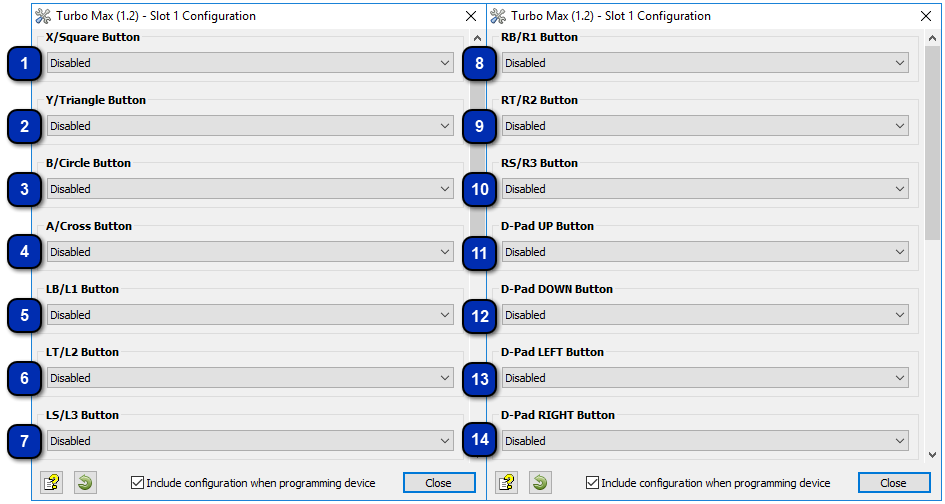
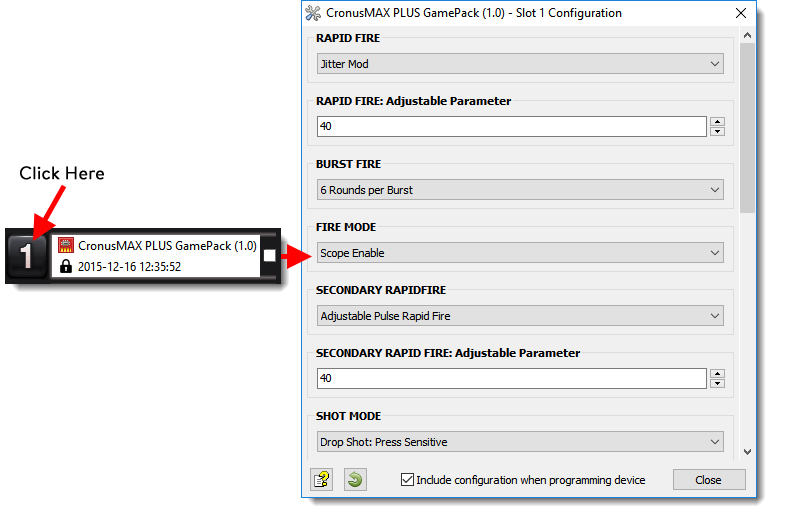
Pre-configure your GamePack settings using the GamePack Configuration Interface (GCI) in
the Cronus PRO software. The GCI opens automatically when you load a GamePack to a memory slot, or
you can simply click on the memory slot number to the left of the loaded GamePack to open the GCI.
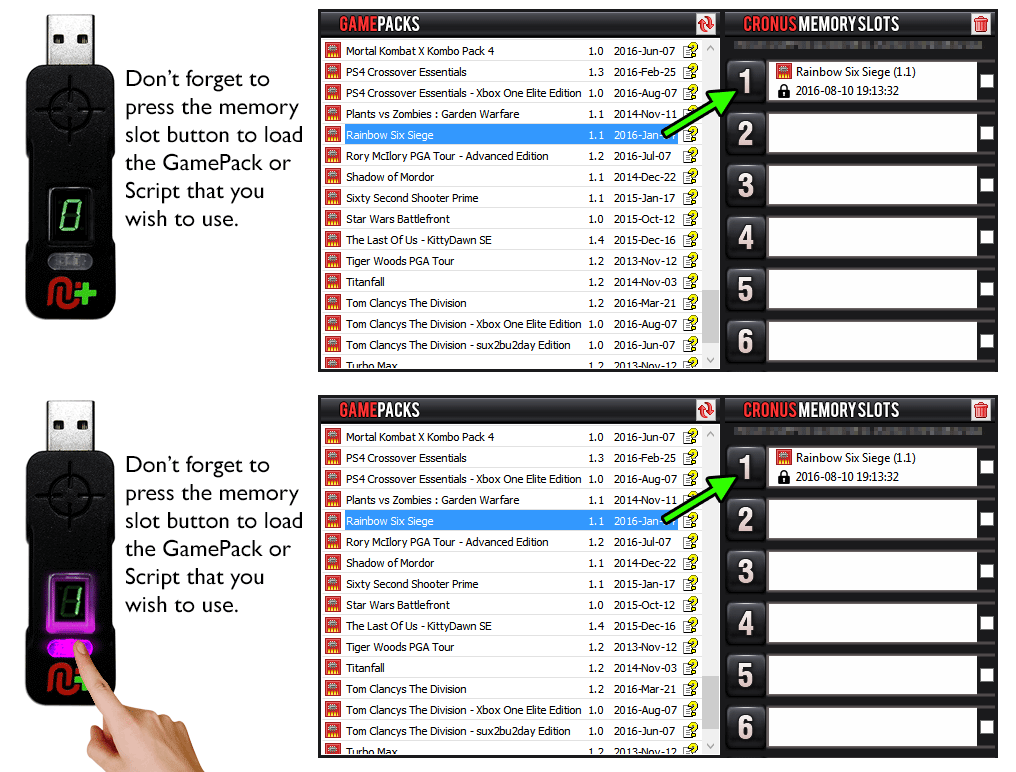
As soon as you select your preferred settings, close the GCI and click the PROGRAM DEVICE button. To
select the GamePack you wish to use on your console, press the Memory Slot button on the CronusMAX
PLUS so that it highlights the corresponding number on the LED (so if you have a GamePack loaded to
Memory Slot 1, the LED on the CronusMAX PLUS should display the number 1).
|
|
|
 |
|
Hold SELECT+START for 2 seconds to enter menu mode.
|
|
|
|
 |
|
Hold SHARE+OPTIONS for 2 seconds to enter menu mode*
|
|
|
|
 |
|
Hold BACK+START for 2 seconds to enter menu mode.
|
|
|
|
 |
|
Hold VIEW+MENU for 2 seconds to enter menu mode.
|
|
|
Player LED 4 will blink the number of the current Class
(DS4 / CronusMAX PLUS Backlight LED will flash Pink).
Player LED 3 will blink the number of the active Mod for
the current Class (DS4 / CronusMAX PLUS Backlight LED will flash Green).
Note: If the Player LED 3 is not blinking, it means either no Mod is
loaded/disabled or the default setting is selected for the current Class. See below for
instructions how to navigate between Classes and Mod's.
|
 
|
Goes Up
|
|
Goes Down
|
 
|
Goes Up
|
  |
Goes Down
|
Assign Turbo Feature To A Button |
|
|
|
GamePack Classes and Mods |