Instructions for Warframe GamePackCompatible CronusMAX PLUS Firmware: 1.24+
Compatible Controllers: Dualshock 4, Dualshock 3, Xbox One, Xbox
360, Wii U Pro
Compatible Systems: Playstation 4, Xbox One and Windows
PC
GamePack Operation
Quick
Disable/Re-Enable GamePack:
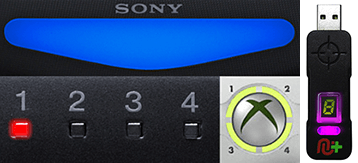
Player LED 1: Controller in regular mode, the GamePack is
Disabled (Blue on DS4 /
CronusMAX PLUS Backlight LED).
Player LED 4: The GamePack is Enabled (Pink on DS4 / CronusMAX PLUS Backlight
LED).
GamePack Configuration
GCI
(GamePack Configuration Interface) Operation:
All GamePacks
have Mods that can be tuned and customized to your own preference. This is what makes the CronusMAX so
powerful and extremely popular with the gaming community. The settings are usually made using the
controllers built in GamePack Menu Mode, as explained below. However, there is a much easier and quicker
method via the new GCI (GamePack Configuration Interface).
NOTE
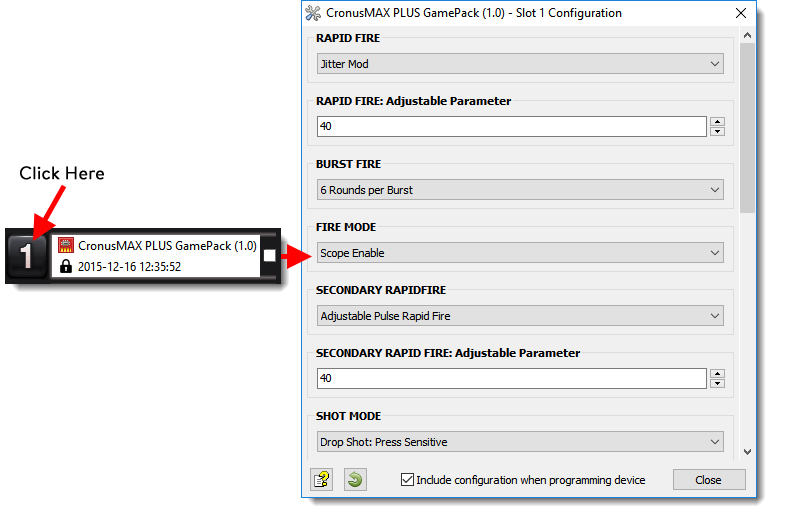
Pre-configure your GamePack settings using the GamePack Configuration Interface (GCI) in
the Cronus PRO software. The GCI opens automatically when you load a GamePack to a memory slot, or
you can simply click on the memory slot number to the left of the loaded GamePack to open the GCI.
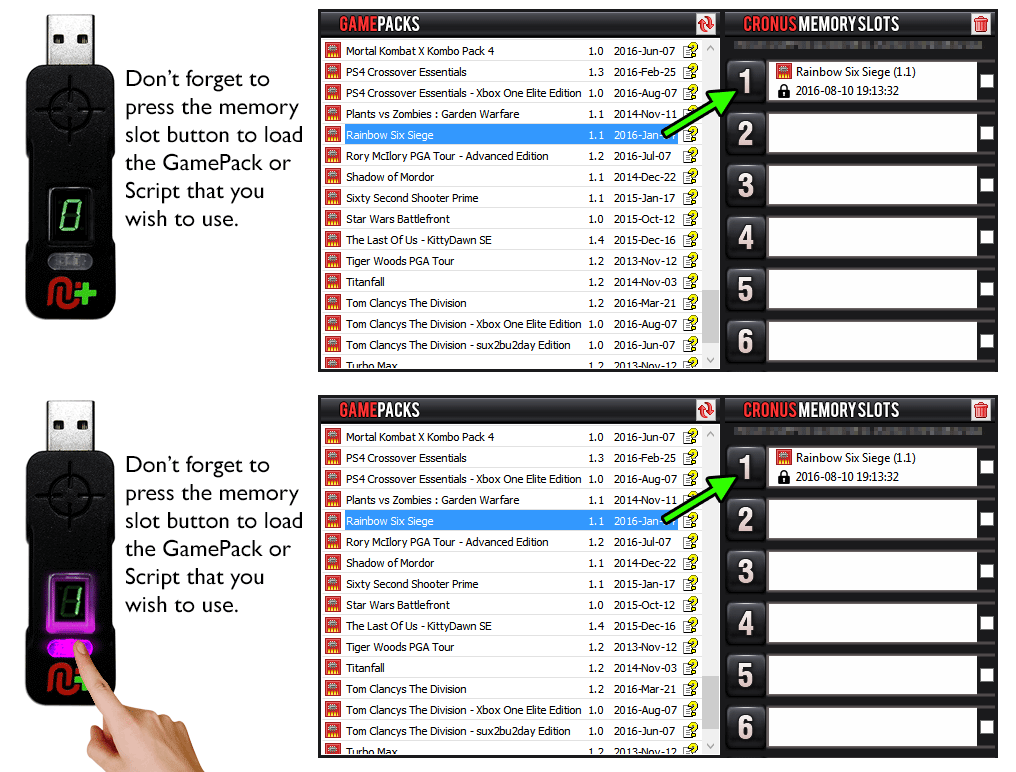
As soon as you select your preferred settings, close the GCI and click the PROGRAM DEVICE button. To
select the GamePack you wish to use on your console, press the Memory Slot button on the CronusMAX
PLUS so that it highlights the corresponding number on the LED (so if you have a GamePack loaded to
Memory Slot 1, the LED on the CronusMAX PLUS should display the number 1).
How to
Enter GamePack Menu Mode:
Note: The Menu is navigated via the CronusMAX PLUS LED System and also the controller's Player Number LED's if available. It is not an on-screen menu. Click Here for an instructional video.
Hold SELECT+START for 2 seconds to enter menu mode.
Hold SHARE+OPTIONS for 2 seconds to enter menu mode*
Hold BACK+START for 2 seconds to enter menu mode.
Hold VIEW+MENU for 2 seconds to enter menu mode.
IMPORTANT
Always keep the SELECT / SHARE / BACK / VIEW button pressed while in Menu Mode. To
exit Menu mode, release the SELECT / SHARE / BACK / VIEW button.
Player LED 4 will blink the number of the current Class
(DS4 / CronusMAX PLUS Backlight LED will flash Pink).
Player LED 3 will blink the number of the active Mod for
the current Class (DS4 / CronusMAX PLUS Backlight LED will flash Green).
Note: If the Player LED 3 is not blinking, it means either no Mod is
loaded/disabled or the default setting is selected for the current Class. See below for
instructions how to navigate between Classes and Mod's.
To Navigate
Between Classes:
Goes Up
Goes Down
To Navigate
Between Mods Within the Current Class:
Goes Up
Goes Down
GamePack Classes and Mods
Class 1
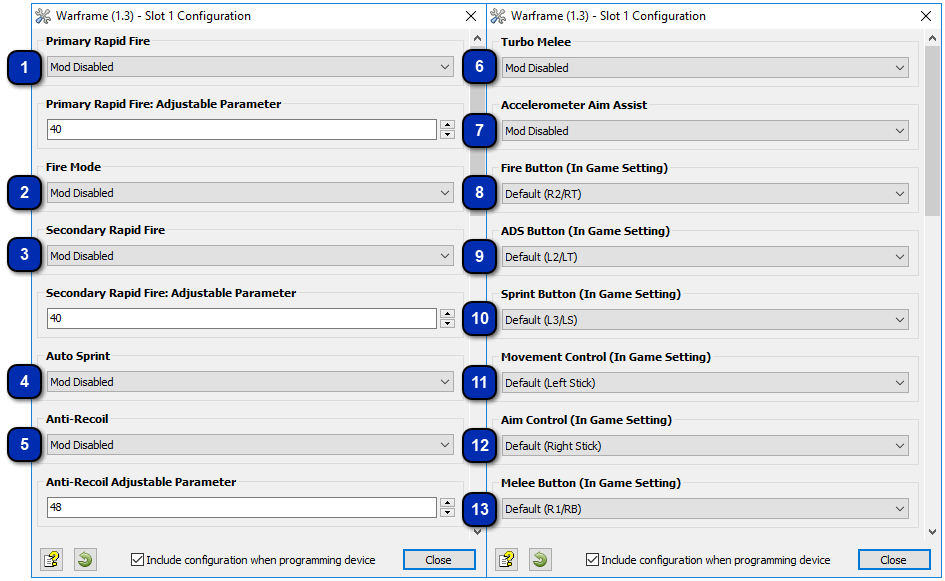
Primary Rapid Fire
When
Rapid Fire is enabled, you can turn virtually any semi automatic weapon into a fully
automatic weapon. This creates a very unique advantage for players using semi automatic
weapons. While Rapid Fire will not usually make a fully automatic gun shoot any faster,
it can have positive side effects on fully automatic guns such as reducing recoil,
helping players conserve ammunition and achieve more head shots.
HOW TO ADJUST THE RAPID FIRE SPEED
You can adjust Rapid Fire speed and test your settings within
the game. (In Menu Mode: LB/L1 Reduce Value Increases Rate of Fire - RB/R1
Increase Value Reduces Rate of Fire - RT/R2 Test).
Increases
Rate of
Fire
Decreases
Rate of
Fire
Test
current
Rate of
Fire
Mod
Name
Description
0
Mod Disabled
1
Optimized Rapid Fire
This Rapid Fire is optimized to be as fast as possible but at the same
time ensures that every single shot is correctly registered by the game.
2
Adjustable Rapid Fire Adjustable
With Adjustable Rapid Fire you can always get the optimum firepower for
your favorite weapon. See the menu system instructions above for more
information on how to adjust your Rapid Fire speed in this mode.
3
Pulse Rapid Fire Adjustable
Pulse Rapid Fire can reach a faster rate of fire with burst type
weapons.
If
Secondary Rapid Fire is enabled it will take place when the regular Rapid Fire is not
actuating. For example if your regular Rapid Fire is only active when scoping then the
Secondary Rapid Fire will be activated when you are not using scope. This behavior can
be very handy to set a precise rate of fire while aiming and a more aggressive rate of
fire while hip firing.
HOW TO ADJUST THE SECONDARY RAPID FIRE SPEED
You can adjust Secondary Rapid Fire speed and test your
settings within the game. (In Menu Mode: LB/L1 Reduce Value Increases Rate of
Fire - RB/R1 Increase Value Reduces Rate of Fire - RT/R2 Test).
Increases
Rate of
Fire
Decreases
Rate of
Fire
Test
current
Rate of
Fire
Mod
Name
Description
0
Mod Disabled
1
Optimized Rapid Fire
This Secondary Rapid Fire is optimized to be as fast as possible but at
the same time ensuring that every single shot will be correctly
registered by the game.
2
Adjustable Rapid Fire Adjustable
With Adjustable Secondary Rapid Fire you can always get the optimum
firepower for your favorite weapon. See the menu system instructions
above for more information on how to adjust your Rapid Fire speed in
this mode.
3
Pulse Rapid Fire Adjustable
Pulse Secondary Rapid Fire can reach a faster rate of fire with burst
type weapons.
If you
are tired of constantly pressing the a button to make your character sprint? Then Auto
Sprint is just what you have been looking for.
Mod
Name
Description
0
Mod Disabled
1
Fully Auto
Your character will sprint at the same time you begin to move him
forward.
2
Press Sensitive
Your character will sprint if the analog stick is FULLY pressed forward.
The character will walk regular speed if the analog stick is only
slightly pressed forward.
This
Mod compensates for vertical recoil while firing a weapon by automatically moving the
control stick in the opposite direction of the one your gun is moving while firing. The
adjustable parameter sets how much the compensation should be.
Remember, there isn't a one-size-fits-all setup for Anti-Recoil sensitivity due to
different weapons having different perks and attachments affecting weight distribution.
We suggest you try different adjustable values with each weapon and set to whatever you
feel works best for you. We would appreciate if you share these values with the CronusMAX Support Community to
help others :)
HOW TO ADJUST ANTI-RECOIL IN GAME
You can now adjust Anti-Recoil and test your settings within
the game menu and with each weapon without having to set/save/restart every time
to test each setting and each weapon. This is a new awesome feature that allows
you to optimize your weapon's settings on-the-fly saving you a TON of time! (In
Menu Mode: LB/L1 Decrease Weight - RB/R1 Increase Weight - RT/R2 Test).
Increases
Weight of
Anti-Recoil
Decreases
Weight of
Anti-Recoil
Test
current
Weight of
Anti-Recoil
TIP
If your weapon is moving UP when you fire, you need a
LARGER number in the adjustable parameter.
If your weapon is moving DOWN when you fire, you need a SMALLER
number in the adjustable parameter.
Mod
Name
Description
0
Mod Disabled
1
Anti-Recoil
Anti-Recoil is activated while firing.
2
Anti-Recoil Scope Enable
Anti-Recoil is activated while firing and aiming.
3
Anti-Recoil Scope Disable
Anti-Recoil is activated while firing and NOT aiming.
4
Inverted-Y Anti-Recoil
Anti-Recoil with inverted Y-Axis is activated while firing.
5
Inverted-Y Anti-Recoil Scope Enable
Anti-Recoil with inverted Y-Axis is activated while firing and aiming.
6
Inverted-Y Anti-Recoil Scope Disable
Anti-Recoil with inverted Y-Axis is activated while firing and NOT
aiming.
With
Accelerometer Aim Assist, you can use a Six-Axis DualShock 4 or DualShock 3 controller
to aim while scoping. This means you can move the controller to adjust the target
position when scoped in. This Mod will not affect aiming with the right stick. It will
only add an additional option to aim with. Each of the modes will add sensitivity with
mode 1 being the least sensitive and mode 5 being the most sensitive.
LEGAL DISCLAIMER
All product names, logos, and brands are property of their respective owners. All
company, product and service names used in this website are for identification purposes only. Use of
these names, logos, and brands does not imply endorsement. A GamePack is not software and it does
not change or interfere with any code of the game. A GamePack comprises of a set instructions to
automate controller outputs (buttons, triggers, bumpers, paddles, d-pad, analog sticks, touchpad
sensors etc.). This makes the game easier and more enjoyable to play.