Combo Section

 
A combo (short for combination) is a combination of preprogrammed instructions which are executed in sequence.  Just like the main section, commands within a combo are performed in the order they are written.  You can run any code you can run in the main section within a combo such as calling functions or setting variables, although this is generally unnecessary and usually results in nothing more than a waste of stack memory and bytecode space.  A combo is ideal suited to setting the output of a button for a specific length of time which is done using the wait command, a command that is unique to combos and cannot be used elsewhere.
 
Just as with variables, a combos name can start with either an underscore ( _ ) or a letter and can be followed by any combination of letters, digits or underscores.
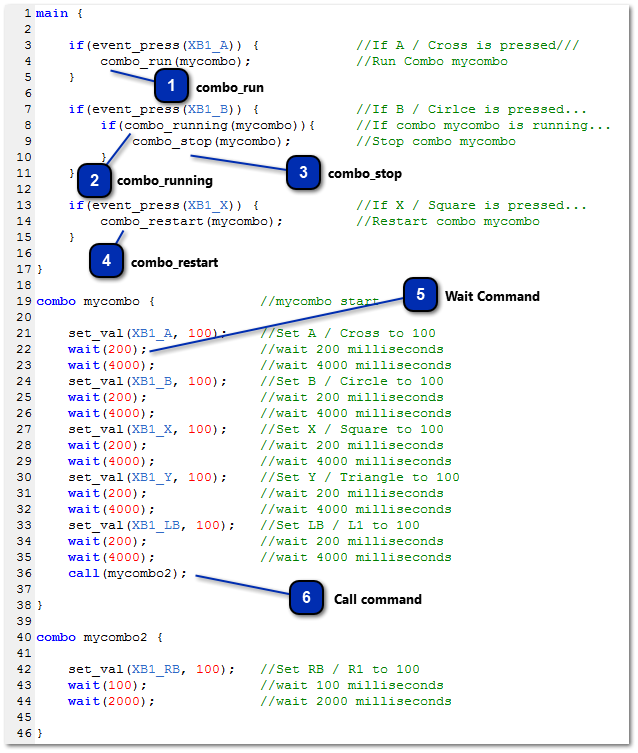
 
Combo Section
1
combo_run
1. combo_run
combo_run does precisely what the name suggests and runs a combo.  However, unlike the combo_restart command, it has no effect if the combo is currently running. It will only start a combo is it is not already running.
 

Syntax

combo_run ( <Combo Name> );
 

Parameters

 
<Combo Name> : The name assigned to a combo. 
2
combo_running
2. combo_running
combo_running is a function which can be used in your code to check is a combo is running is not.  If the combo named in its parameter is running, then it will return TRUE.  If not, it will return FALSE.
 

Syntax

combo_running ( <Combo Name> );
 

Parameters

 
<Combo Name> : The name assigned to a combo.
 

Returns

 
TRUE if the combo is running, FALSE if it is not
 
combo_running is particularly useful if you only want certain lines of code executed when the combo has finished.  For example, if you want to run a combo 5 times from a single button press, with a combination of combo_running and a variable you can do so as shown in the example below;
 
int run_combo = 0;
 
main {
 
    if(event_press(19)) {       //If A / Cross is pressed...
        run_combo = 5;          //Variable 'run_combo' equals 5
    }
 
    if(run_combo && !combo_running(mycombo)) {  //If 'run_combo' has a value and mycombo is not running...
        run_combo = run_combo - 1;              //'run_combo' equals 'run_combo' minus 1
        combo_restart(mycombo);                 //restart mycombo
    }
 
}
 
combo mycombo {
    set_val(3, 100);    //set RB / R1 to 100
    wait(200);          //wait 200 milliseconds
    wait(200);          //wait 200 milliseconds
}
 
Device monitor output from the above code;
 
 
As you can see, the output from the above code will press the RB / R1 button 5 times from a single press of the A / Cross Button.  As you can see, when using the combo_running function and a variable, it is possible to produce multiple button presses with a small amount of code.  You could change the line 'run_combo = 5;'  to any value above 0 (zero) and below 32767.  The combo would be executed however many times you stipulated.
3
combo_stop
3. combo_stop
As the name suggests, combo_stop will stop a combo if it is currently running.  As with combo_run, it has no effect if the combo is not currently running.
 

Syntax

combo_stop ( <Combo Name> );
 

Parameters

 
<Combo Name> : The name assigned to a combo.
 
combo_stop is particularly useful when you only wish for your combo to run when a button is held. To achieve this, you would use it in combination with an else statement as shown below;
 
int run_combo = 0;
 
main {
 
    if(get_val(19)) {           //If A / Cross is held..
        combo_run(mycombo);     //run mycombo
    } else {                    //If A / Cross is not pressed/held...
        combo_stop(mycombo);    //stop mycombo
    }
 
}
 
combo mycombo {
    set_val(3, 100);    //set RB / R1 to 100
    wait(2000);         //wait 2000 milliseconds
    wait(2000);         //wait 2000 milliseconds
}
 
4
combo_restart
4. combo_restart
As the name suggests, combo_restart will restart a running combo.  If the combo stated within it's parameters is currently running, it will be restarted from the beginning.  If the combo is not currently running, it will be run.
 

Syntax

combo_restart ( <Combo Name> );
 

Parameters

 
<Combo Name> : The name assigned to a combo.
5
Wait Command
5. Wait Command
The wait command instructs the Virtual Machine within the CronusMAX on how long the last set of commands should be executed for.  The length of time they instruct the VM to execute the commands for is represented in milliseconds and can rand from 1ms to 32767ms (That's 1 millisecond to just over 32 seconds).
 
The commands executed during the wait time are those placed between the current wait and the previous wait time, the current wait time and previous call command or the start of the combo, whichever comes first.  As shown in the example below;
 
combo mycombo {
 
    set_val(19, 100);//¯¯|
    set_val(18, 100);//  | These two buttons will be held
    wait(1000);      //←_| for 1000 milliseconds (1 second)
 
    set_val(3, 100);//¯¯|
    set_val(7, 100);//  | These two buttons will be held
    wait(1500);     //←_| for 1500 milliseconds (1.5 seconds)
 
    set_val(9, -100);//¯¯| This axis will be held
    wait(2000);      //←_| for 2000 milliseconds (2 seconds)
 
}
 
The wait command can only be used within a combo and must be at the first level of the combo block, it cannot be nested. The example below shows correct and incorrect usage of the wait command;
 
main {
 
    wait(100);  //Incorrect - Will produce an error as this command is
                //not permitted outside of a combo
 
}
 
combo mycombo {
 
    if(get_console() == PIO_PS4) {
 
        wait(200);  //Incorrect - Although this wait command is within a combo,
                    //is is not permitted beyond the first level of the combo block
    }
 
    wait(400);      //Correct - This wait command is at the first level of the
                    //combo block.
 
}
 
function myfunction() {
 
    wait(300);      //Incorrect - Will again produce an error as this command is
                    //not permitted outside of a combo
 
}
 

Syntax

wait ( <Time> );
 

Parameters

 
<Time> : The length of time the last commands should be executed for. Represented in milliseconds - range 10 ~ 4000
6
Call command
6. Call command
Like the wait command, call is unique to combos and it is not permitted outside of the first level of a combo
 
When the call command is used, the current combo it is placed in is paused and the combo within the call commands parameters is executed.  Once the called combo has finished, the combo the call command was executed in is then resumed.  For example;
 
combo _1st_combo {
 
    set_val(XB1_B, 100);
    wait(100);
    wait(200);
    call(_2nd_combo);   //_1st_combo is paused until _2nd_combo is finished
    set_val(XB1_Y, 100);
    wait(100);
    wait(200);
 
}
 
combo _2nd_combo {
 
    set_val(XB1_RB, 100);
    wait(100);
    wait(200);
 
}   //Once this combo has ended, the combo is was called from can resume
 
In the above example, when _1st_combo is run, the sequence of commands sent to the console would be;
 
  • B / Circle is pressed for 100 milliseconds
  • No buttons are pressed by the Virtual Machine for 200 milliseconds
  • RB / R1 is pressed for 100 milliseconds
  • No buttons are pressed by the Virtual Machine for 200 milliseconds
  • Y / Triangle is pressed for 100 milliseconds
  • No buttons are pressed by the Virtual Machine for 200 milliseconds
 
As you can see, using the call command injects a combo into a combo at a set point.  This is particularly useful when you have two combos which perform identical actions at a point and wish to save space in your script. 
 

Syntax

call ( <Combo Name> );
 

Parameters

 
<Combo Name> : The name of the combo to be called.





