The Destiny GamePackboasts a new Anti-Recoil with Dual Presets Mod that can be activated and adjusted in-game by an easy to use Toggle System. Other essentials include Adjustable
Rapid Fire, Adjustable Burst Fire, Easy
Super, Melee Modifier, Auto
Sprint, Auto Double Jump, and the exclusive
Quick Mod Shortcuts for Destiny, which removes the
redundant actions of the D-Pad such as pointing and waving and
turns them into something more useful, including Auto Slide,
Quick Sub-Class Changer, Auto Enter
Sparrow, and Auto Goto Orbit.
We also invite you to join the Cronus Discord Channel - setup and run by members of the Cronus Community. There are several channels dedicated to GamePacks which offer live support and feedback, including direct support from senior members of the Cronus Community. Use this link to join our server: https://discord.gg/mJgQyM4
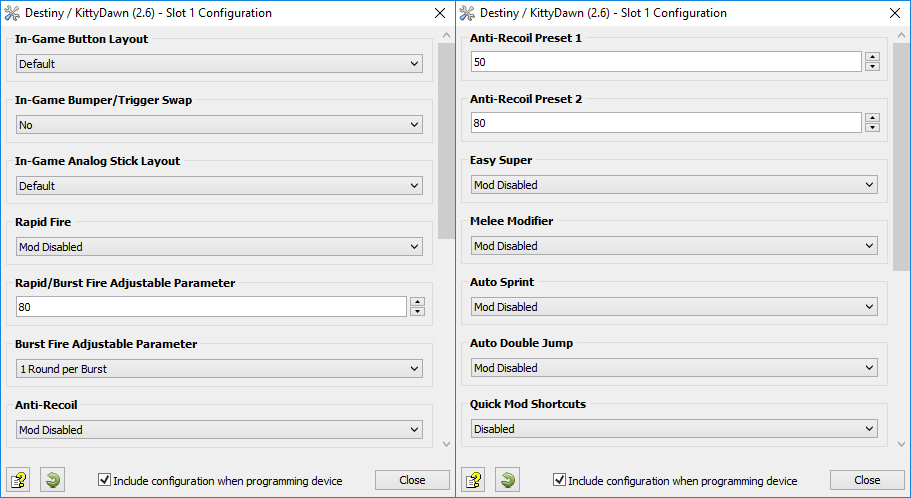
GamePack GCI Options
All GamePacks have Mods that can be tuned and customized to your preference.
This scripting engine is what makes the CronusMAX so powerful and extremely
popular with the gaming community. Gaming Mod configuration is now made more
accessible than ever before with the new GCI (GamePack Configuration Interface).
It pops up as soon as you program the GamePack to your Cronus (Video). Some Mods can
be directly enabled/disabled here, and some are disabled in-game by default,
but have several available options that can be set here and then enabled or
activated while in-game.
GamePack Setup
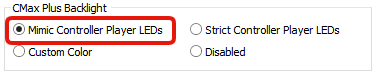
If you have a CronusMAX PLUS, open the Cronus PRO software and go to
Tools > Options > CMax Plus and enable "Mimic
Controller Player LEDs" for the backlight LED features to
work.
Class 1
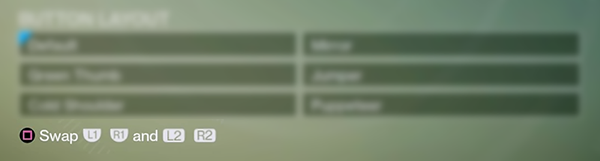
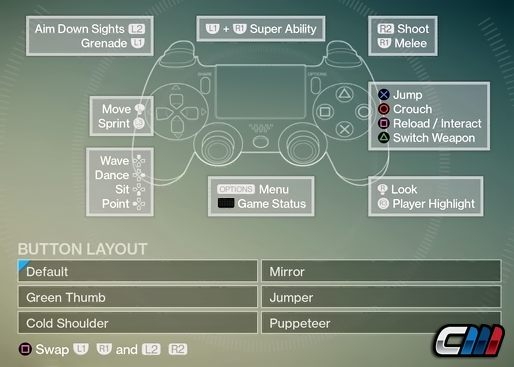
In Game Button Layout
Most
users play Destiny using the default button layout but a lot of players do use optional
button layouts. With the In Game Button Layouts you can make any of the Mods on the
CronusMAX PLUS work with your favorite configurations, so select the option here which
matches your in game options and the GamePack will optimize all Mod Classes to your
preferred layout. NOTE: This step is very important. If you don't select the
correct layout that you are using in game, the Mods in this GamePack will not work
correctly.
In this
class, you inform the GamePack if you have the triggers and bumpers swapped within the
in game options. NOTE: This step is very important. If you don't select the
correct layout that you are using in game, the Mods in this GamePack will not work
correctly.
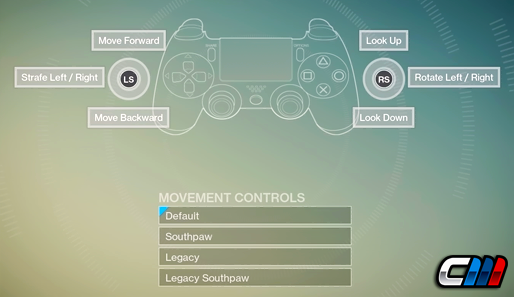
Here
you let the GamePack know which stick layout you are using in game so it can optimize
the appropriate Mods.
NOTE: This step is very important. If you don't select the correct layout that
you are using in game, the Mods in this GamePack will not work correctly, especially
Anti-Recoil.
When
Rapid Fire is enabled, you can turn virtually any semi automatic weapon into a fully
automatic weapon. This creates a very unique advantage for players using semi automatic
weapons. While Rapid Fire will not usually make a fully automatic gun shoot any faster,
it can have positive side effects on fully automatic guns such as reducing recoil,
helping players conserve ammunition and achieve more headshots.
Mod
Name
Description
0
Mod Disabled
1
Adjustable Rapid Fire Adjustable
With Adjustable Rapid Fire you can always get the optimum firepower for
your favorite weapon. See the menu system instructions above for more
information on how to adjust your Rapid Fire speed in this mode.
2
Burst Fire
This Mod enables Burst Fire mode, turning your automatic or single shot
weapons into a Burst Fire weapon. See Class 5 for more details.
Mod
Shortcut (Class 11 must be enabled) - When not aiming down the sights:
Burst
firing is designed to turn semi automatic and automatic weapons into burst firing
weapons. When this feature is enabled in Class 4, your weapon will fire in bursts and
can be set to 1, 2, 3, 4, 5, or 6 round bursts. Burst firing can help reduce recoil and
conserve ammunition.
This
Mod compensate for vertical recoil while firing a weapon by automatic moving the control
stick in the opposite direction of the one your gun is moving while firing. The
adjustable parameter sets how much the compensation should be. This Anti-Recoil Mod
comes with two special presets which also gives you control of the recoil weight. See
the options below for adjusting the Presets and Anti-Recoil weight.
Remember, there isn't a one-size-fits-all setup for Anti-Recoil sensitivity due to
different weapons having different perks and attachments affecting weight distribution.
We suggest you try different adjustable values with each weapon and set to whatever you
feel works best for you. We would appreciate if you share these values with the CronusMAX Support Community to
help others :)
TIP
If your weapon is moving UP when you fire, you need a
LARGER number in the adjustable parameter.
If your weapon is moving DOWN when you fire, you need a SMALLER
number in the adjustable parameter.
Mod
Name
Description
0
Mod Disabled
1
Anti-Recoil Always On
Anti-Recoil is activated while firing.
2
Anti-Recoil Scope Enable
Anti-Recoil is activated while firing and aiming.
3
Anti-Recoil Scope Disable
Anti-Recoil is activated while firing and NOT aiming.
Anti-Recoil comes with two presets - While Aiming Down Sights:
Have
you ever needed to active your super in a rush and accidentally wasted a grenade,
punched the air or do you simply find it a pain pressing both buttons at the same time?
Again, CronusMAX comes to the rescue. When this exclusive Mod is active, pressing the
player highlight button will instead press the two buttons to activate your super
instead!
For
example, with the default layout and Stick controls, pressing the RS/R3 will press the
LB/L1 and RB/R1 at exactly the same time, thus making it a lot easier to activate your
super.
TIP
Please ensure Class 1 and 2 match your in game settings for
this MOD.
This
Mod changes the operation of the Melee button. It can either make you automatically jump
forward and punch when you tap the melee button or it can repeatedly press the melee
button when you hold it down.
NOTE
Using this MOD can make activating your "Super" quite
difficult. If you do choose to use it, we recommended that you also enable Class
7 so you can activate your super with ease.
Mod
Name
Description
0
Mod Disabled
1
Jump Melee Quick Tap Activation
The Jump Melee Mod will automatically make the character jump, move
forward and melee.
NOTE: While this Mod is active, press and hold the melee button for a normal melee
2
Turbo Melee
Press and hold the melee button and it will automatically be pressed
again for the next melee action.
Are
you tired of having to press the sprint button each time you move forward? If so, this
Mod is for you.
IMPORTANT
Auto sprint is automatically temporary disabled when
Reloading, in ADS, shooting and using MOD shortcuts.
Mod
Name
Description
0
Mod Disabled
1
Fully Auto
Your character will sprint at the same time you begin to move him
forward.
2
Press Sensitive
Your character will sprint if the analog stick is FULLY pressed forward.
The character will walk regular speed if the analog stick is only
slightly pressed forward.
This
Mod will automate the task of double jumping in Destiny. When active, if you press and
hold the jump button, it will automatically press it a second time.
If you
quickly tap the jump button, it will perform a single jump.
When
active, this Mod removes the redundant actions of the D-Pad such as pointing and waving
and turns them into something more useful.
Mod
Name
0
Disabled
1
Enabled
If enabled and the player is not aiming down their sights (in ADS), this Mod
will assign the following to the D-Pad controls:
Press Up on D-Pad
Auto Slide - This shortcut will make the character sprint forward
briefly and then slide.
Press Down on D-Pad
Quick Sub-Class Change - This shortcut will pause the game, move the
cursor over and change to your alternative sub-class.
Press Left on D-Pad
Auto Enter Sparrow - This shortcut will enter Nav move and automatically
hold the button to board your Sparrow.
Press Right on D-Pad
Enable/Disable Rapid Fire or Burst Fire - If either Rapid Fire or Burst
Fire are enabled, this shortcut allows you to quickly switch them
on/off.
Press Back + Y
Select + Triangle
Auto Goto Orbit - This shortcut will enter Nav mode and hold the button
to take you to orbit and save you holding that button for what feels
like 5 minutes at times!
When this GamePack is being used on a PlayStation 4 and detects the
connected controller is not a DualShock 4, it will automatically reassign
Touchpad to the Select/Back/View Button and enable a toggle to the PS4 Share
Screen.
Crossover
Shortcut to DualShock 4 Touchpad:
Toggle to
PlayStation 4 Share Screen:
Troubleshooting
If you find your GamePack isn't working correctly, the memory in the Cronus device where the settings are stored may have become corrupted. In this case, we recommend that you erase your memory slots using the Cronus Pro option in Tools > Device Cleanup > Erase Memory Slots. There will be an option to clear the memory slots in Cronus Pro. This step is not necessary, although recommended if you're not using the other slots.
If you're still having issues and want to check that your Cronus Device is functioning correctly with scripts, but you're not too sure how to test, we recommend you try out the easy to use Cronus Stress Test Script by Cronus Community senior staff member, Lex Lost.
Destiny, and the Destiny logo are registered or unregistered trademarks of Bungie, Inc. in the U.S. and/or other countries.
The “PS” Family logo is a registered trademark and “PS4” is a trademark of Sony Computer Entertainment Inc.
Microsoft, Xbox One and the Xbox logos are trademarks of the Microsoft group of companies.
Other product names used herein are for identification purposes only and might be trademarks of their respective companies. We disclaim any and all rights to those marks.