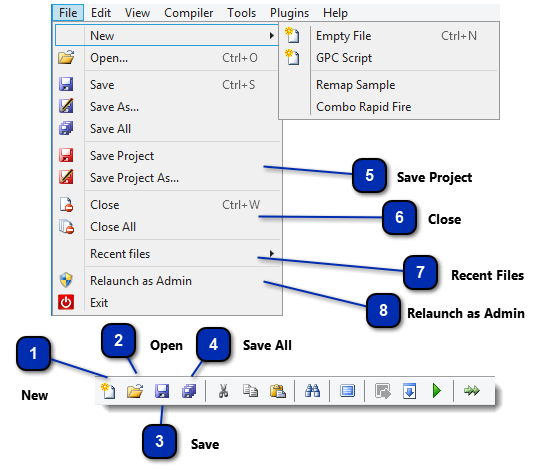
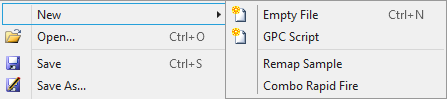
To create a new file, go to File > New menu or just press the correspondent icon in the toolbar. A base script will be created and a new compiler tab will appear with the title "New". The option Empty File (Ctrl+N), as the name implies, just creates a blank file. The menu File > New also contains templates of sample scripts to illustrate some basic structures of the GPC programming language.
Open works similar to any other Windows application. To open a GPC or GPJ file, simply go to File > Open, click on the open icon in the toolbar or use the shortcut key Ctrl+O. A dialog will appear and you can select one or multiple files to open. Each file will be opened in an individual compiler tab, if a file was already opened, its correspondent compiler tab will get focus. You can also open GPC and GPJ files by double clicking on their icons, for that you need to associate these files with the Cronus PRO software in Cronus PRO Options.
Saving a GPC script can be done in multiple ways. The default way is to select File > Save (Ctrl+S), or by clicking the icon in the toolbar. If the file exists, it will be overwritten using this functions. Should you wish to save an existing script to a different file or location, you can select Save As.., a Save File Dialog will open which allows you to choose the location and filename for the file.
To indicate that a GPC file was changed and has not yet been saved, an asterisk(*) will be displayed in it's tab, after the filename.
This function will save all currently opened GPC scripts in the compiler. A Save File Dialog will open for each script which has not been opened from an existing file or saved before.
The references to all opened GPC scripts can be saved into a project file (GPJ). A project file is an easy way to recall the currently opened GPC files, therefore opening a project file is the same as opening all script files belonging to the project one by one.
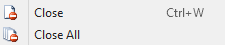
In order to close the GPC files you have open, you have multiple options available. Remember that if you have any unsaved data in a GPC file, Cronus PRO will always ask if you'd like to save those changes before closing any file. Primarily, you can close any file by selecting File > Close. To close all files, select File > Close All. Finally, you can close any active tab by clicking on the cross in the right corner of the script tab.
The Cronus PRO software keeps a list of the 10 most recently opened files in the File > Recent files menu, so you can reopen them quickly by simply click on the file name.