Automatic PS4 Crossover |
 |
 |
 |
 |
 |
|
|
 |
 |
|
Press View + Left Analog Stick (LS) together.
|
GamePack Operation |
|
|
|
 |
|
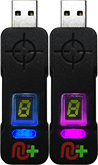 |
The GamePack is disabled: Blue on CronusMAX PLUS Backlight LED.
The GamePack is enabled: Pink on CronusMAX PLUS Backlight LED.
|
GamePack Configuration |
|
|
|
 |
|
Hold VIEW+MENU together for 2 seconds to enter menu mode.
|
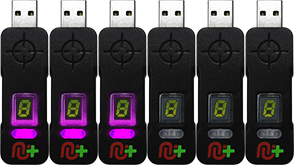 |
CronusMAX PLUS Backlight LED will flash Pink the number of the current Class.
CronusMAX PLUS Backlight LED will flash Green the number of the active Mod for the current Class.
|
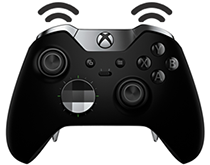 |
The Xbox One Elite Controller's Right Trigger will rumble the number of the current Class (CronusMAX PLUS Backlight LED will flash Pink).
The Xbox One Elite Controller's, the Left Trigger will rumble the number of active Mod for the current Class (CronusMAX PLUS Backlight LED will flash Green).
|
If the Player LED 3 is not blinking, it means either no MOD or the Default setting is selected for the current Class. See below for instructions how to navigate between Classes and MOD's.
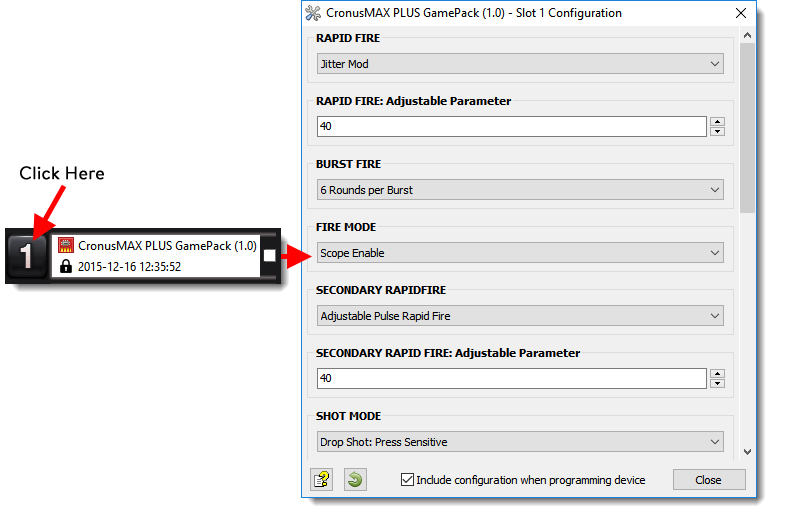
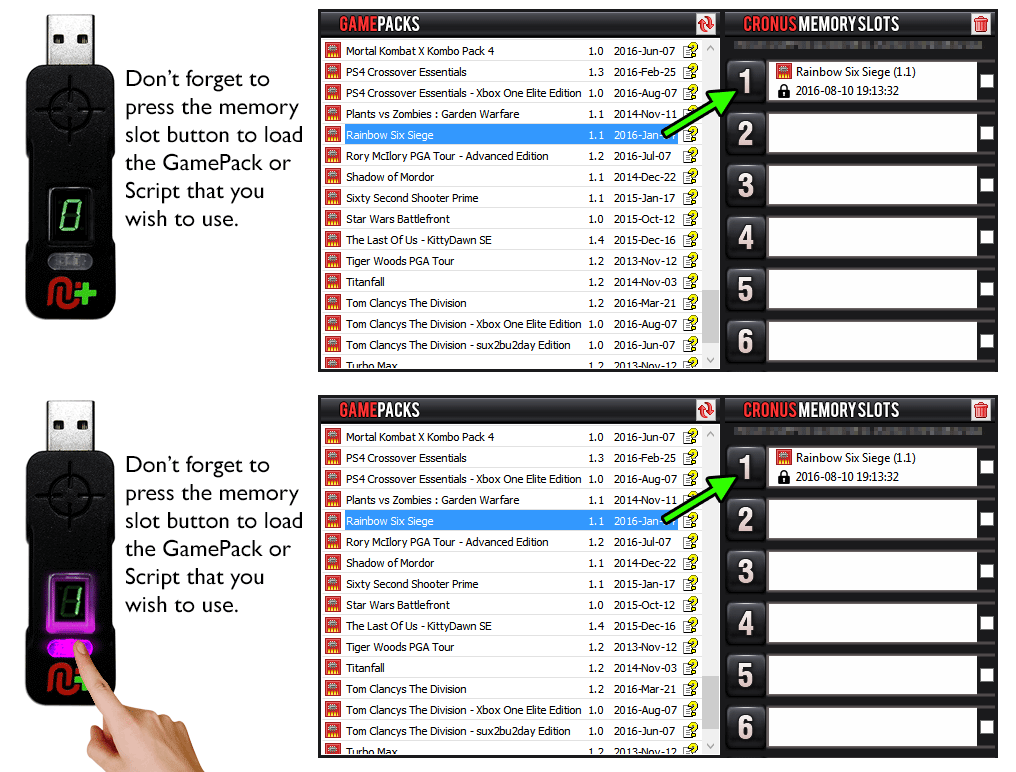
You can also pre-configure your GamePack settings using the GamePack Configuration Interface (GCI) in Cronus Pro. The GCI opens automatically when you load a GamePack to a memory slot, or you can simply click on the memory slot number to the left of the loaded GamePack to open the GCI. As soon as you select your preferred settings, close the GCI and click the PROGRAM DEVICE button. To select the GamePack you wish to use on your console, press the Memory Slot button on the CronusMAX PLUS so that it highlights the corresponding number on the LED (so if you have a GamePack loaded to Memory Slot 1, the LED on the CronusMAX PLUS should display the number 1).
  |
Goes Up
|
  |
Goes Down
|
  |
Goes Up
|
  |
Goes Down
|
GamePack Classes and Mods |
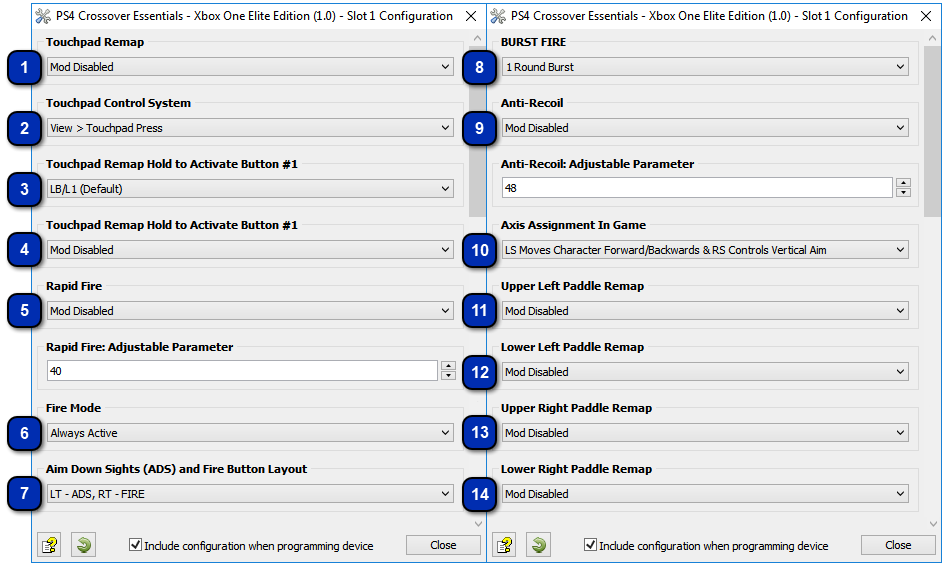
This class lets you choose how View and Menu is remapped to the Touchpad.
| |||||||||||||||||||||||||||
Choose which button to use in conjunction with Mods 3 or 4 in Class 1.
It is recommended to use two buttons as when they are both pressed, the signals to the console for those buttons are blocked. Using just one button to activate the Touchpad Remapping Mod can interfere with gameplay. A combination of two buttons which aren't used together by the game is a safer option (Class 3 is the first button, Class 4 is the second button).
| |||||||||||||||||||||||||||||||||||
Choose whether or not to use a second button with Mods 3 or 4 in Class 1.
It is recommended to use two buttons as when they are both pressed, the signals to the console for those buttons are blocked. Using just one button to activate the Touchpad Remapping Mod can interfere with gameplay. A combination of two buttons which aren't used together by the game is a safer option (Class 3 is the first button, Class 4 is the second button).
| |||||||||||||||||||||||||||||||||||
When Rapid Fire is enabled, you can turn virtually any semi automatic weapon into a fully automatic weapon. This creates a very unique advantage for players using semi automatic weapons. While Rapid Fire will not usually make a fully automatic gun shoot any faster, it can have positive side effects on fully automatic guns such as reducing recoil, helping players conserve ammunition and achieve more headshots.
While in this Class - Press LB to decrease / Press RB to Increase delay on the adjustable parameter. Press RT to test. Also, while mods are active, hold View and press X to Enable/Disable Rapid Fire/Burst Fire.
| |||||||||||||||
Fire Mode determines an assist action to be used together with Rapid Fire and/or Burst Fire. These are normally applied to the triggers.
| ||||||||||||||||||
Here, you let the game know what your in game settings are for the ADS and FIRE buttons so it knows which buttons to monitor and control for classes 5, 6 and 9.
| |||||||||||
Burst firing is designed to turn semi automatic and automatic weapons into burst firing weapons. When this feature is enabled, your weapon will fire in bursts similar to the M16 and can be used with 1, 2, 3, 4, 5, or 6 round bursts. Burst firing can help reduce recoil and conserve ammunition.
| |||||||||||||||||
This Mod compensate for vertical recoil while firing a weapon by automatic moving the control stick in the opposite direction of the one your gun is moving while firing. The adjustable parameter sets how much the compensation should be.
Remember, there isn't a one-size-fits-all setup for Anti-Recoil sensitivity due to different weapons having different perks and attachments affecting weight distribution. We suggest you try different adjustable values with each weapon and set to whatever you feel works best for you. We would appreciate if you share these values with the CronusMAX Support Community to help others :)
Check Class 10 to make sure the correct stick selection is made for this MOD to work correctly. You can now adjust Anti-Recoil and test your settings within the game menu and with each weapon without having to set/save/restart every time to test each setting and each weapon. This is a new awesome feature that allows you to optimize your weapon's settings on-the-fly saving you a TON of time! (In Menu Mode: LB Decrease Weight - RB Increase Weight - RT Test).
If your weapon is moving UP when you fire, you need a LARGER number in the adjustable parameter. If your weapon is moving DOWN when you fire, you need a SMALLER number in the adjustable parameter.
| |||||||||||||||||||||||||||||||||
Here you tell the GamePack how your Sticks are setup in game. This is required for the Anti-Recoil and Auto Sprint Mods.
| |||||||||
You can map a huge number of button, trigger, analog stick and touchpad options to your Elite Paddles.
When using this GamePack, you must disable any default button mapping assignments that you made with the Xbox One software by double tapping the green connect button on the Xbox One Elite Controller (next to the USB Port). When double tapping the connect button, the Elite controller will vibrate twice to let you know all stored paddle mappings have been disabled. You can double tap again and it will vibrate four times to let you know they have been restored. 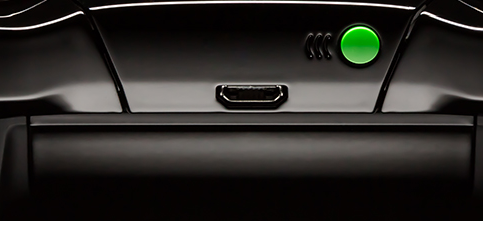
| |||||||||||||||||||||||||||||||||||||||||||||||||||||||||||||||||
Quick Reference: Classes and Mods |
|
01: TOUCHPAD REMAP
|
02: TOUCHPAD CONTROL SYSTEM
|
03: TOUCHPAD REMAP ACTIVATE BUTTON #1
|
|
00: Mod Disabled
01: Linear (Toggle System)
02: Movement Based (Toggle System)
03: Linear (Hold System)
04: Movement Based (Hold System)
|
00: View = Press Touchpad
01: Tap to Press Touchpad
Tap View = Press Touchpad Left
Tap Menu = Press Touchpad Right
Hold View = Share
Hold Menu = Options
02: Hold To Press Touchpad
Tap View = Share
Tap Menu = Options
Hold View = Press Touchpad Left
Hold Menu = Press Touchpad Right
|
00: LB/L1 (Default)
01: RB/R1
02: RT/R2
03: RS/R3
04: LB/L1
05: LT/L2
06: LS/L3
07: DPAD-UP
08: DPAD-DOWN
09: DPAD-LEFT
10: DPAD-RIGHT
11: Y/TRIANGLE
12: B/CIRCLE
13: A/CROSS
14: X/SQUARE
|
|
04: TOUCHPAD REMAP ACTIVATE BUTTON #2
|
05: RAPID FIRE
|
06: FIRE MODE
|
|
00: Mod Disabled
01: RB/R1
02: RT/R2
03: RS/R3
04: LB/L1
05: LT/L2
06: LS/L3
07: DPAD-UP
08: DPAD-DOWN
09: DPAD-LEFT
10: DPAD-RIGHT
11: Y/TRIANGLE
12: B/CIRCLE
13: A/CROSS
14: X/SQUARE
|
00: Mod Disabled
01: Rapid Fire (Adjustable)
02: Burst Fire (Adjustable - See Class 8)
|
00: Always Active
01: Scope Disable
02: Scope Enable
03: Press Sensitive
|
|
07: ADS & FIRE BUTTON LAYOUT
|
08: BURST FIRE VARIABLE
|
09: ANTI-RECOIL
|
|
00: LT - ADS, RT - FIRE
01: LB - ADS, RB - FIRE
|
01: 1 Round Burst
02: 2 Round Burst
03: 3 Round Burst
04: 4 Round Burst
05: 5 Round Burst
06: 6 Round Burst
|
00: Mod Disabled
01: Anti-Recoil
02: Anti-Recoil (Scope Disable)
03: Anti-Recoil (Scope Enable)
04: Inverted-Y Anti-Recoil
05: Inverted-Y Anti-Recoil (Scope Disable)
06: Inverted-Y Anti-Recoil (Scope Enable)
|
|
10: AXIS ASSIGNMENT IN GAME
|
11: UPPER LEFT PADDLE REMAP (P3)
|
12: LOWER LEFT PADDLE REMAP (P4)
|
|
00: Left Stick Moves Character Forward/Backwards and Right Stick Controls Vertical Aim
01: Left Stick Controls Vertical Aim and Right Stick Moves Character Forwards/Backwards
|
00: Mod Disabled
01: VIEW/SHARE
02: MENU/OPTIONS
03: RB/R1
04: RT/R2
05: RS/R3
06: LB/L1
07: LT/L2
08: LS/L3
09: RIGHT STICK UP
10: RIGHT STICK DOWN
11: RIGHT STICK RIGHT
12: RIGHT STICK LEFT
13: LEFT STICK UP
14: LEFT STICK DOWN
15: LEFT STICK RIGHT
16: LEFT STICK LEFT
17: DPAD-UP
18: DPAD-DOWN
19: DPAD-LEFT
20: DPAD-RIGHT
21: Y/TRIANGLE
22: B/CIRCLE
23: A/CROSS
24: X/SQUARE
25: TOUCHPAD LEFT
26: TOUCHPAD RIGHT
27: TOUCHPAD UP
28: TOUCHPAD DOWN
29: TOUCHPAD PRESS
|
00: Mod Disabled
01: VIEW/SHARE
02: MENU/OPTIONS
03: RB/R1
04: RT/R2
05: RS/R3
06: LB/L1
07: LT/L2
08: LS/L3
09: RIGHT STICK UP
10: RIGHT STICK DOWN
11: RIGHT STICK RIGHT
12: RIGHT STICK LEFT
13: LEFT STICK UP
14: LEFT STICK DOWN
15: LEFT STICK RIGHT
16: LEFT STICK LEFT
17: DPAD-UP
18: DPAD-DOWN
19: DPAD-LEFT
20: DPAD-RIGHT
21: Y/TRIANGLE
22: B/CIRCLE
23: A/CROSS
24: X/SQUARE
25: TOUCHPAD LEFT
26: TOUCHPAD RIGHT
27: TOUCHPAD UP
28: TOUCHPAD DOWN
29: TOUCHPAD PRESS
|
|
13: UPPER RIGHT PADDLE REMAP (P2)
|
14: LOWER RIGHT PADDLE REMAP (P1)
|
|
|
00: Mod Disabled
01: VIEW/SHARE
02: MENU/OPTIONS
03: RB/R1
04: RT/R2
05: RS/R3
06: LB/L1
07: LT/L2
08: LS/L3
09: RIGHT STICK UP
10: RIGHT STICK DOWN
11: RIGHT STICK RIGHT
12: RIGHT STICK LEFT
13: LEFT STICK UP
14: LEFT STICK DOWN
15: LEFT STICK RIGHT
16: LEFT STICK LEFT
17: DPAD-UP
18: DPAD-DOWN
19: DPAD-LEFT
20: DPAD-RIGHT
21: Y/TRIANGLE
22: B/CIRCLE
23: A/CROSS
24: X/SQUARE
25: TOUCHPAD LEFT
26: TOUCHPAD RIGHT
27: TOUCHPAD UP
28: TOUCHPAD DOWN
29: TOUCHPAD PRESS
|
00: Mod Disabled
01: VIEW/SHARE
02: MENU/OPTIONS
03: RB/R1
04: RT/R2
05: RS/R3
06: LB/L1
07: LT/L2
08: LS/L3
09: RIGHT STICK UP
10: RIGHT STICK DOWN
11: RIGHT STICK RIGHT
12: RIGHT STICK LEFT
13: LEFT STICK UP
14: LEFT STICK DOWN
15: LEFT STICK RIGHT
16: LEFT STICK LEFT
17: DPAD-UP
18: DPAD-DOWN
19: DPAD-LEFT
20: DPAD-RIGHT
21: Y/TRIANGLE
22: B/CIRCLE
23: A/CROSS
24: X/SQUARE
25: TOUCHPAD LEFT
26: TOUCHPAD RIGHT
27: TOUCHPAD UP
28: TOUCHPAD DOWN
29: TOUCHPAD PRESS
|
|