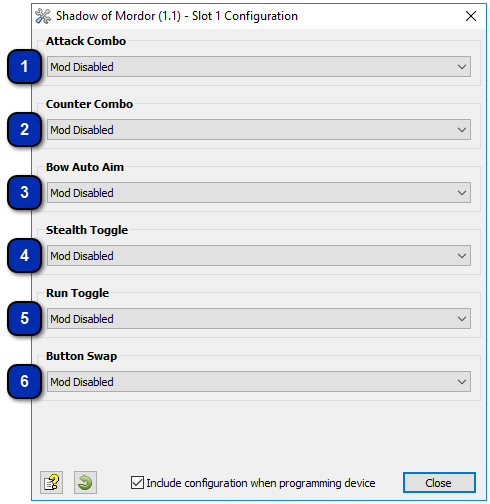
Middle-Earth: Shadow of Mordor GamePack for CronusMAX PLUS. The story of the game takes place between the events of The Hobbit and The Lord of the Rings. Players can engage in melee combat, and utilize some of the wraith abilities to fight against enemies. Mods include Turbo Attack Combos, Counter Combos, Bow Auto Aim, Stealth Toggle, Run Toggle and Button Swap.
Instructions for Middle-Earth: Shadow of Mordor GamePackCompatible CronusMAX PLUS Firmware: 1.24+
Compatible Controllers: Dualshock 4, Dualshock 3, Xbox One, Xbox 360, Wii U Pro
Compatible Systems: Playstation 4, Xbox One, Playstation 3, Xbox 360 and Windows PC
IMPORTANT
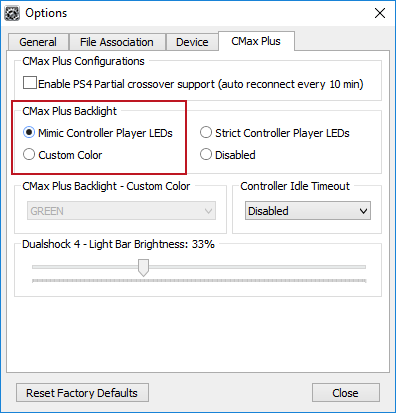
If you have a CronusMAX PLUS, make sure you goto Tools > Options > CMax Plus and enable "Mimic Controller Player LEDs" in the CMax Plus Backlight area if you want the CronusMAX PLUS Backlight LED features to work. Also, for more information on the benefits of using a USB Hub with your CronusMAX PLUS Click Here
GamePack Operation
Quick Disable/Re-Enable GamePack:
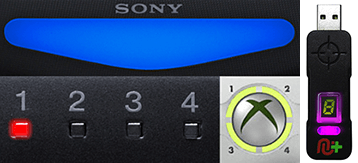
Player LED 1: Controller in regular mode, the GamePack is Disabled (Blue on DS4 / CronusMAX PLUS Backlight LED).
Player LED 4: The GamePack is Enabled (Pink on DS4 / CronusMAX PLUS Backlight LED).
GamePack Configuration
GCI (GamePack Configuration Interface) Operation:
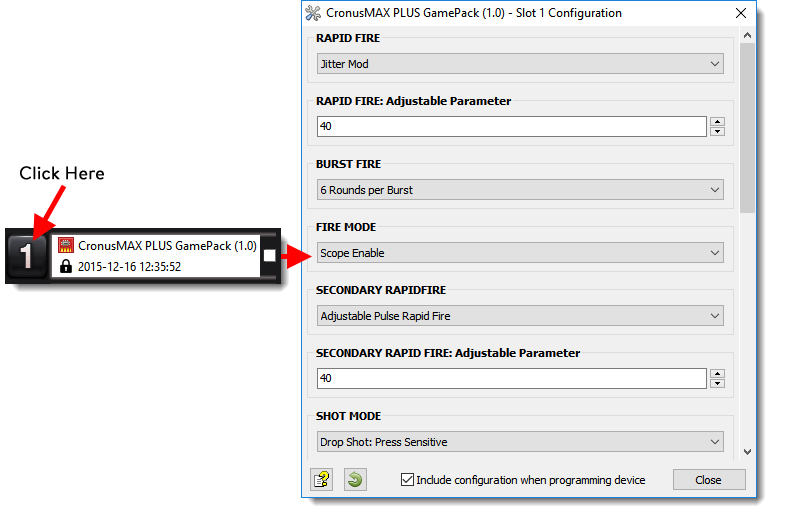
All GamePacks have Mods that can be tuned and customized to your own preference. This is what makes the CronusMAX so powerful and extremely popular with the gaming community. The settings are usually made using the controllers built in GamePack Menu Mode, as explained below. However, there is a much easier and quicker method via the new GCI (GamePack Configuration Interface).
NOTE
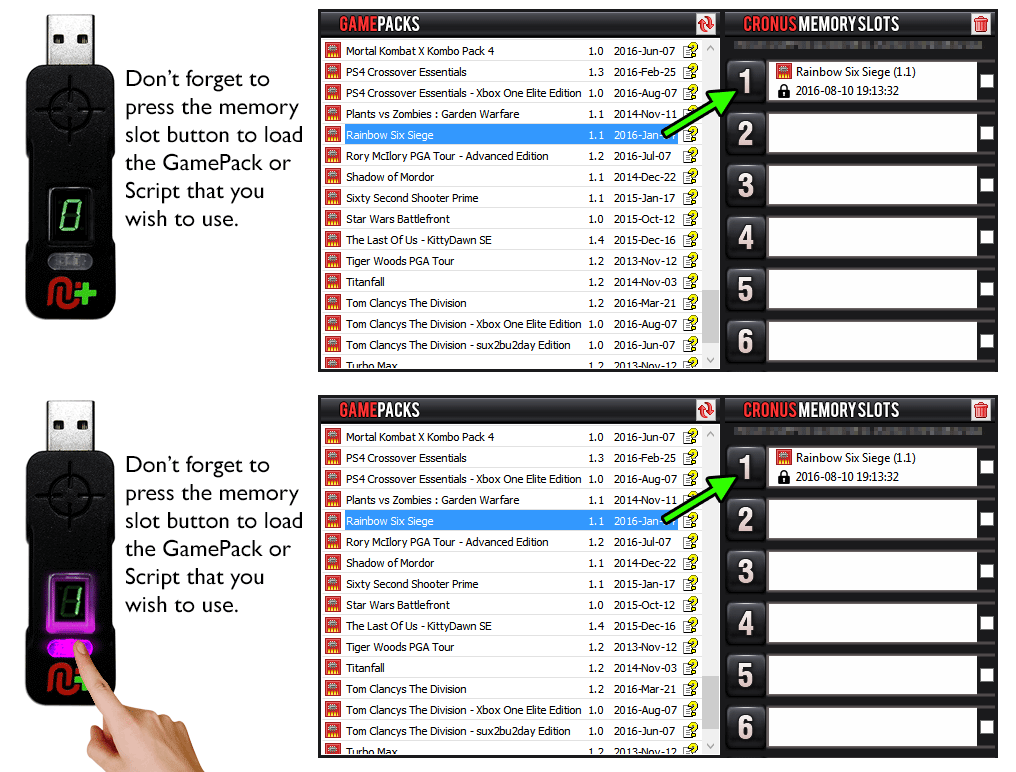
Pre-configure your GamePack settings using the GamePack Configuration Interface (GCI) in the Cronus PRO software. The GCI opens automatically when you load a GamePack to a memory slot, or you can simply click on the memory slot number to the left of the loaded GamePack to open the GCI. As soon as you select your preferred settings, close the GCI and click the PROGRAM DEVICE button. To select the GamePack you wish to use on your console, press the Memory Slot button on the CronusMAX PLUS so that it highlights the corresponding number on the LED (so if you have a GamePack loaded to Memory Slot 1, the LED on the CronusMAX PLUS should display the number 1).
How to Enter GamePack Menu Mode:
Note: The Menu is navigated via the CronusMAX PLUS LED System and also the controller's Player Number LED's if available. It is not an on-screen menu. Click Here for an instructional video.
Hold SELECT+START for 2 seconds to enter menu mode.
Hold SHARE+OPTIONS for 2 seconds to enter menu mode*
Hold BACK+START for 2 seconds to enter menu mode.
Hold VIEW+MENU for 2 seconds to enter menu mode.
IMPORTANT
Always keep the SELECT / SHARE / BACK / VIEW button pressed while in Menu Mode. To exit Menu mode, release the SELECT / SHARE / BACK / VIEW button.
Player LED 4 will blink the number of the current Class (DS4 / CronusMAX PLUS Backlight LED will flash Pink).
Player LED 3 will blink the number of the active Mod for the current Class (DS4 / CronusMAX PLUS Backlight LED will flash Green).
Note: If the Player LED 3 is not blinking, it means either no Mod is loaded/disabled or the default setting is selected for the current Class. See below for instructions how to navigate between Classes and Mod's.
To Navigate Between Classes:
Goes Up
Goes Down
To Navigate Between Mods Within the Current Class:
Goes Up
Goes Down
GamePack Classes and Mods
Class 1
Attack Combo
Automatically performs the chosen combo by just holding down the attack button.
Bow Auto Aim allows you to auto-aim to the nearest enemy while aiming with your bow. Any time you pull the left trigger to aim it will lock to the nearest enemy.