Xbox One Controller Connecting to an Xbox 360
Connecting to an Xbox 360
 Set Output Protocol
|
|
Follow the instructions here to correctly connect your CronusMAX PLUS to a PC via the PC PROG port using the supplied Mini-USB Cable. |
Load Cronus PRO and go to Tools > Options > Device
These are also the recommended default Speed Up Settings for Xbox One Controllers. Rumble Over Bluetooth is disabled as it's not being used.
You can now close the Options window and disconnect your CronusMAX PLUS from your PC.
|
 Connect the CronusMAX PLUS to your Xbox 360
|
|
Connect the CronusMAX PLUS into one of your Xbox One USB ports via it's Output Port.
|
|
 Connect your wired Xbox 360 Controller to the CronusMAX PLUS
|
|
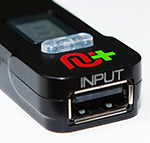
Connect your wired Xbox 360 Controller into the Input Port of the CronusMAX PLUS. |
WARNING
If the LED on the CronusMAX PLUS does not change from AU to a number then the authorization controller is not authenticating. 9/10 we find that this means the Xbox 360 Wired Controller is not compatible for authentication purposes, you should try another one. Also make sure the controller is powered on of course - that's a rookie mistake.
|
 Disconnect your Xbox 360 controller from the CronusMAX PLUS
Once the display on the CronusMAX PLUS shows a number, disconnect your Wired Xbox 360 controller from the CronusMAX PLUS.
|
 Remove any Xbox One Controller Batteries
|
|
Remove any batteries or charger pack from your Xbox One Controller (if it has them).
This is a very important step or the controller will not authorize correctly.
|
|
 Connect your Xbox One Controller to the CronusMAX PLUS
|
 Ready to Use
|
|
After a couple of seconds the display on the CronusMAX LED will go from the spinning Standby Animation to 0 ( or a number if slot recall is enabled and a script was previously loaded) - indicating that the controllers are authorized and you're ready to play. At this point you can use your controller through the CronusMAX PLUS and also load any scripts or GamePacks. It's that simple! |
|