Compiler

Compiler Tab Bar

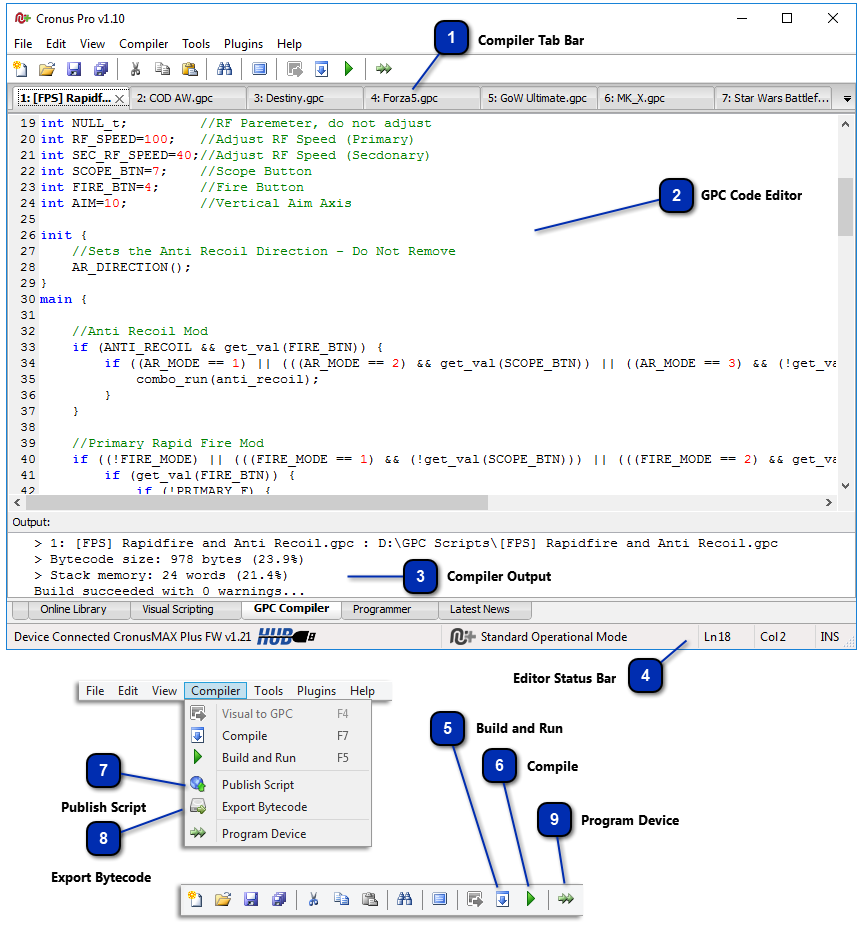
The compiler tab bar allows you to select between different opened GPC scripts.
The first 9 GPC scripts in the tab bar receive a number, which correspond to the
memory slot that the script will be stored in the CronusMAX PLUS when running
the command "Program Device". You can rearrange the
order of GPC scripts in the tab bar by drag and drop. When you make changes in
the source code an asterisk (*) will be displayed in the tab title, indicating
the file has not been saved yet.
|


Compiler Output

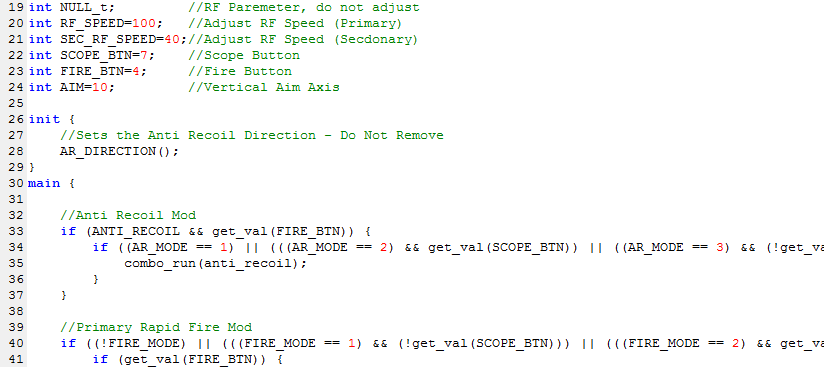
The compiler output area shows the compilation result of the active GPC source
code. The compilation process can be started in many ways, from the usual
Compile command, passing through the "Build and Run", "Program Device"
and others commands, up to a request from a plugin. Regardless of how the
compilation process was started, the results will always be displayed in the
output area.
The results of a compilation process consist of: warnings and errors messages,
the size of bytecode and the amount of stack memory used by static variables and
combos. Inside the parentheses you can find the percentage used of the maximum
allowed. Keep in mind that warning messages are also a kind of error. For
example writing a value out of range into a variable may cause unexpected
behaviors and be very hard to debug. It is highly advisable find and fix all
warning problems.
|




Build and Run

The command "Build and Run"
(shortcut key F5) compiles the active GPC source code and loads it directly into
the CronusMAX RAM. The GPC VM will automatically run the loaded code, so you can
test your script on-the-fly and check all the inputs and outputs using the
Device Monitor. You can set a configuration to automatically open the Device
Monitor in the Cronus PRO Options.

The CRONUSMAX LED display will change to a two bar sign, indicating a script was loaded by the "Build and Run" command.
This command is only available when the CronusMAX PLUS is connected to your computer via the PCPROG side port with a mini-USB cable.
|

Publish Script

You can share your GPC script with the CronusMAX community by publishing it to
our database. But before publishing your script, make sure you have tested it
and it runs without any errors. Click on the "Publish Script" command
to open the publishing form in your default browser. Please fill all required
fields correctly before submit it. A published script will be available for
download in the Online Library of the Cronus Program. You must have an account
registered with the Cronus Community to be able to do this - don't worry it's
completely free to CronusMAX owners, click here to register.
|



Program Device

You can store up to 9 GPC scripts into memory slots of the CronusMAX PLUS, thus
you can access your favorite scripts without requiring a PC connected to your
CronusMAX PLUS and console. The first 9 GPC scripts in the compiler's tab bar
get a number which correspond to the memory slot in which it will be stored. The
order of the scripts in the tab bar can be changed via drag and drop.
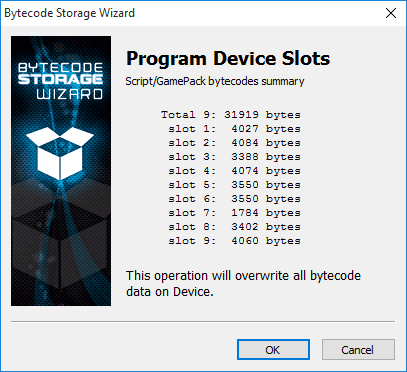
The command "Program Device" will
compile these scripts, any compilation errors will abort the operation. The
produced bytecode is saved into a special structure and a wizard window will
open to guide you through the device programming process, as show in the next
picture.
After the programming process you can run your script by selecting the
correspondent slot number in your CronusMAX PLUS. At this point you don't need
to have your device connected to your PC anymore (unless you are using any of
the Plugins such as X-AIM of course)
        
The CronusMAX PLUS LED Display will show the currently active
slot number.
|