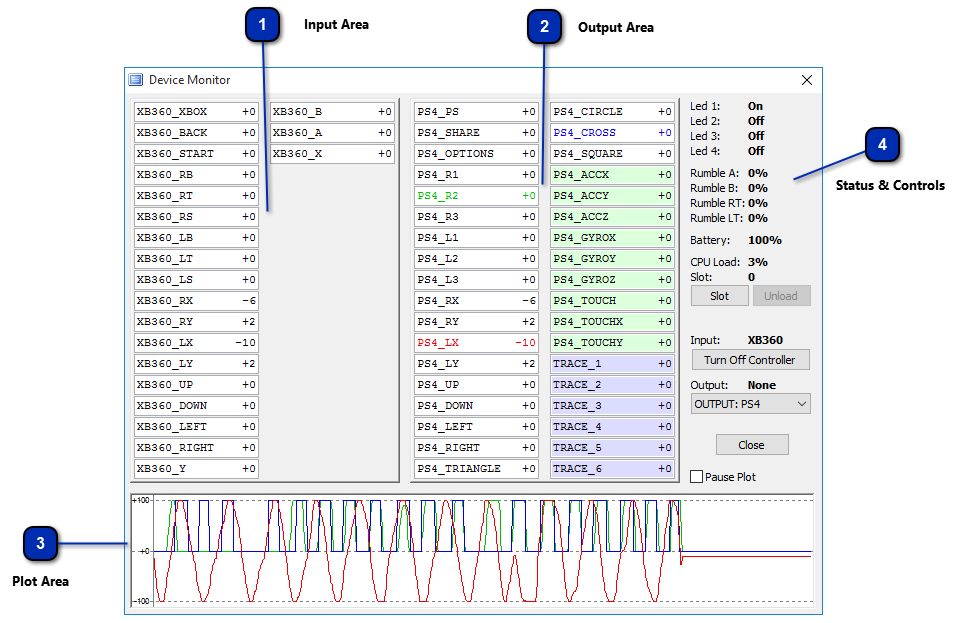
The Device Monitor
shows all real-time information about your CronusMAX PLUS: the input and output data, LED, rumble and
battery information, CPU load and the loaded memory slot. You also have access to operations such as: turn
off a wired controller, change the current slot number and unload the running memory slot. It is a useful
tool for check, test and debug your GPC scripts
IMPORTANT INFORMATION
The Device Monitor is only accessible when the CronusMAX PLUS is connected to your
computer via the PCPROG USB port with a mini-USB cable.
All values
displayed are normalized on its percentage form, meaning the state of a button can vary from 0% (when it is
not being pressed) up to 100% (when it is fully pressed). Some entries, such as analog stick, can range from
-100% to 100%, where 0% is the resting position. The normalization aims to make the values more intuitive
and easy to read.
The run-time
information are grouped into four distinct areas:
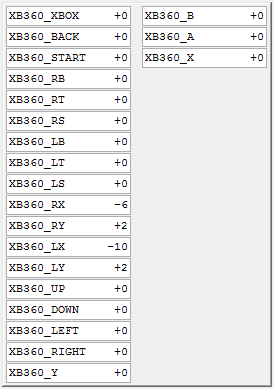
1. Input Area
:
the data from the controller
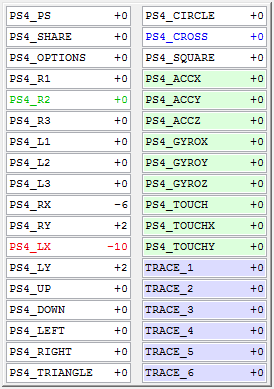
2. Output Area
:
the processed data that is sent to the console
3. Plot Area
:
to plot up to 4 I/O data entries
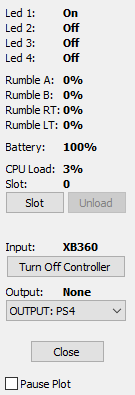
4. Status and Controls
:
additional information and control buttons
The names within
the input fields are determined by the controller type in use (PlayStation 4, PlayStation 3, Xbox One, Xbox 360 or Wii).
Like wise, the names of the output fields are determined by the console type currently connected (PlayStation 4, PlayStation 3, Xbox One or Xbox 360).
If no console is connected, the output field will display whichever console is selected in the dropdown box
within section 4 and if no user selection is made, this will default to PlayStation 4.
Input Area
The
Full status of the controller inputs, button and sensors are reported within the Input
Area. Any Interaction on the controller will be reported in these data fields and in
real time. If there is no controller connected, a message prompting to connect one
will be shown,
Any
input field can have its real time value plotted within the plot area. Simply
click on a field to select it and any changes will be shown in the plot area. You can
have four fields selected at one time.
The
CronusMAX PLUS reads the input data from the controller, processes this data according
to the loaded code (Script or GamePack), and then sends the processed data to the
console. The results of processed data is displayed by the fields in the Output Area. If
the CronusMAX PLUS is not connected to a console then the user can choose the output
format (PS4, XB1, PS3 or XB360) in the respective dropdown box.
The
debug fields can be used by a GPC script for feedback information, flow control checking
and variables monitoring. As the name suggests, this field set are intended for
debugging purpose.
Any
output or debug field can have its real time value plotted in the plot area. Click on a
field to select it for plotting, you can have up to 4 fields selected at the same time.
The
Plot Area plays an important role for data analysis and script debugging. Any data field
can have its real time value plotted by clicking on it; click a second time to stop
plotting. You can have up to 4 fields selected at the same time.
It is
possible to pause the plot graph so you can closely examine a particular sequence of
data.
LED Status: Displays the current state of each Player LED: ON,
OFF, FAST BLINKING, SLOW BLINKING. On PS3 fast blinking means the controller
battery is almost without charge, and the slow blinking means the battery is
charging. A GPC script can overwrite the LED state, as an example: GamePacks,
which widely uses this functionality to implement the configuration menu system.
Rumble Status: Displays the current speed of each rumble
engine. 0% means the rumble engine is not spinning, 100% means it is spinning at
full speed. Rumble A refers the strong engine, Rumble B to the weak engine and
the Rumble RT/LT to the Xbox One triggers engine. The rumble speed can also be
overwritten by a GPC script.
Battery: Shows the battery level of a wireless controller. The
battery status parameter is not applicable to wired controllers, in this case
the value shown is always 100%
CPU Load: Shows the amount of computational work that CronusMAX
PLUS device is performing. Any value below 80% is acceptable and means processor
is able to perform all its tasks on time, without delays or lag.
Slot: Displays the number of active slot, or 0 in case no slot
is loaded. Running a GPC script by the "Build and Run" command will
change this parameter to 10.
Input: Shows the model (PS4, XB1, PS3, XB360, WII) of the
controller connected to the CronusMAX PLUS, or "none" if no controller
is connected.
Output: Shows the console model (PS4, XB1, PS3, XB360) in which
the CronusMAX PLUS is connected, or "none" if no console is connected.
Controls
Switches between memory slots, in the same fashion as the memory slot
button on the CronusMAX PLUS
Unload and active memory slot, making the CronusMAX PLUS go to slot 0
If a wireless controller in in use, this command will turn it off
Show current output status. If no console is currently connected, the
user can chose the output data format (PS4, PS3, XB1, XB360)
for debugging purposes