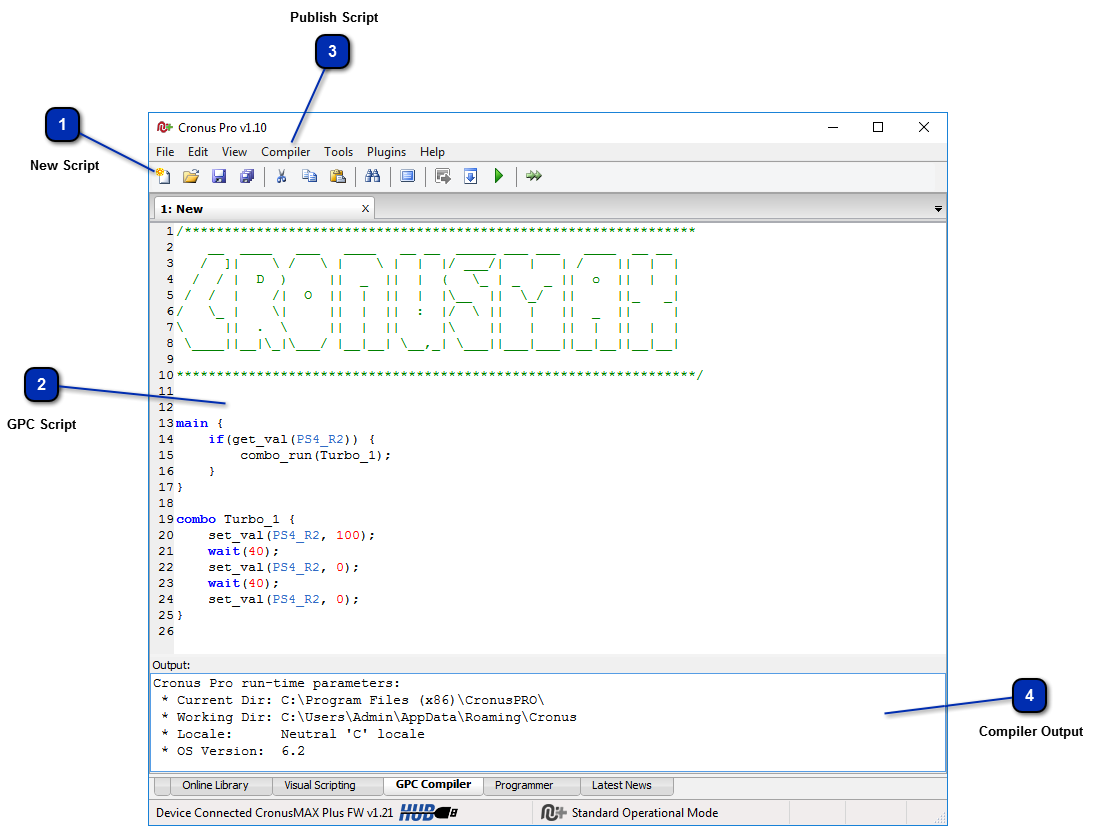
This step by step guide will show you how to easily publish and edit your own scripts to the CronusMAX GPC Online Library.
Before you start, make sure you are signed in to your support forum account. (Click Here to create a free account if you haven't done so yet). You can publish scripts directly from Cronus PRO and then edit/update past scripts and also create dedicated discussion topics for your scripts, so that you can have the Cronus Community offer input, or you can give support yourself to the community and help improve your script.
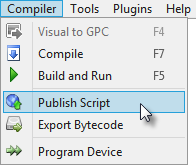
The script will now compile. Only scripts with no errors will be allowed to upload to the GPC Library. If your script compiles successfully, the Compiler Output window will look something like this.
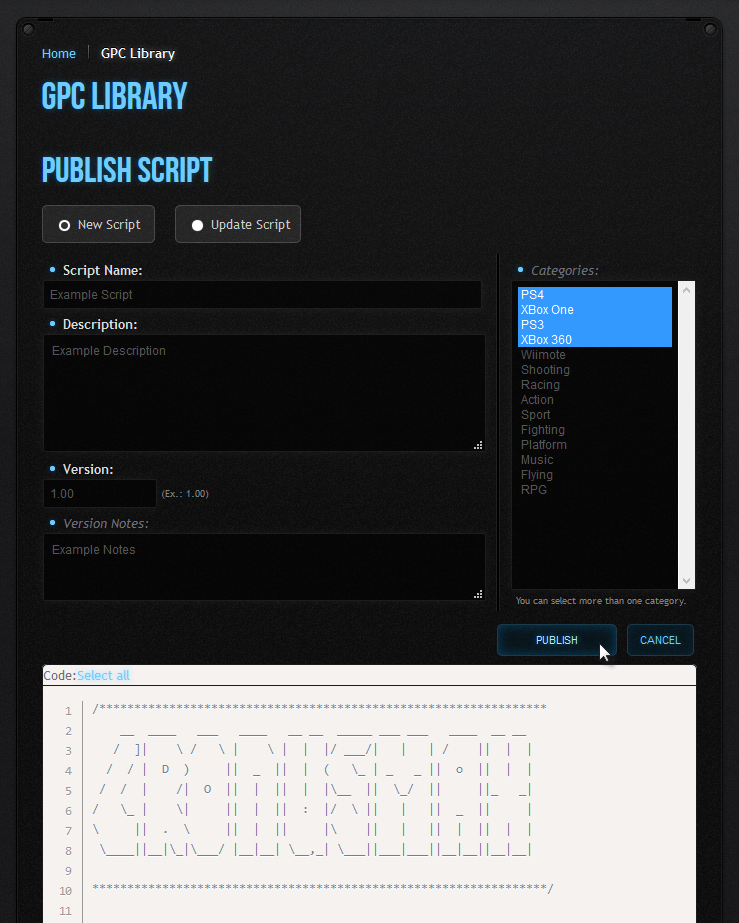
Select New Script and fill out the form including selecting the relevant categories. Once you are happy that everything is correct, click the Publish button.
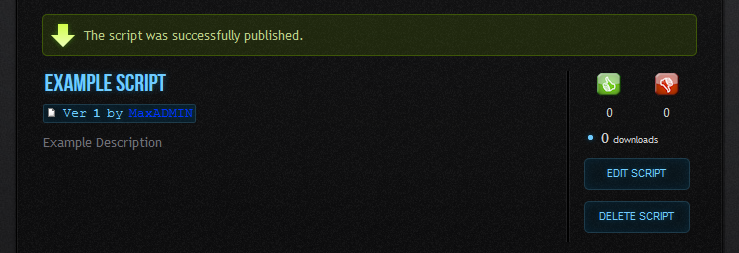
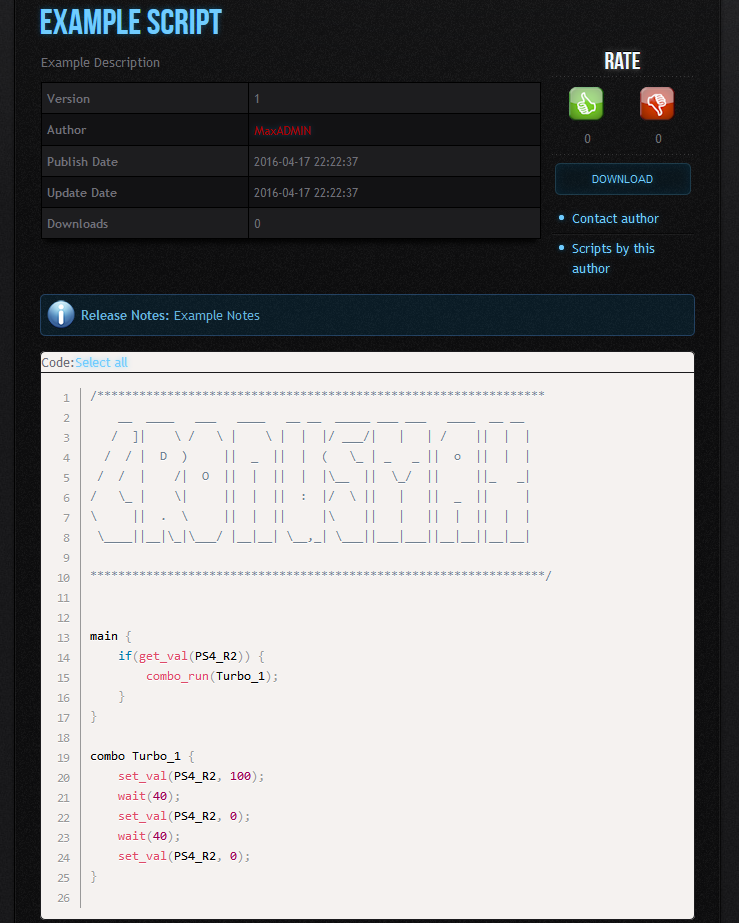
Your script has been successfully published to the GPC Online Library. Congratulations!
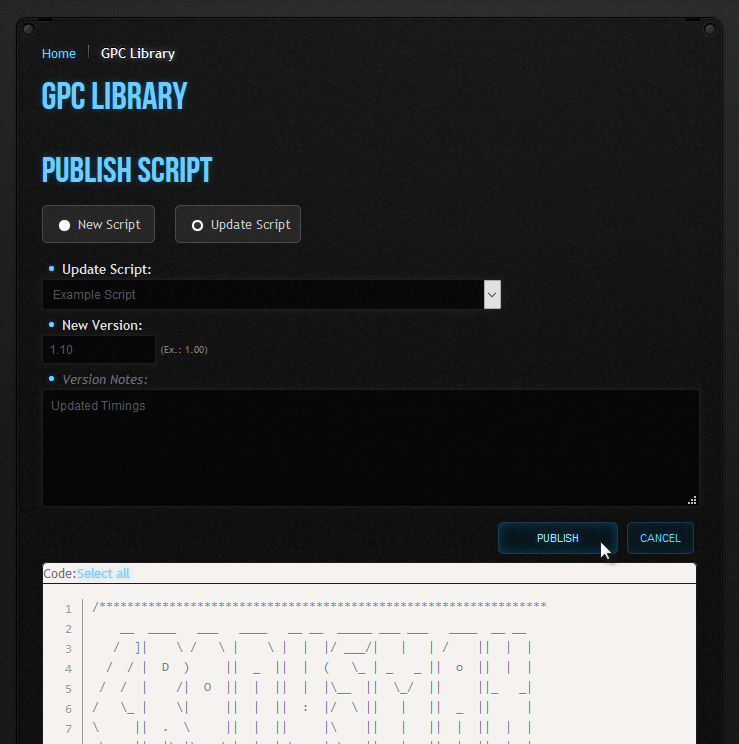
If you wish to update a script, follow the same process in 1 - 4, but when publishing your revised script, instead of selecting 'New Script', select 'Update Script' and choose the script you would like to update from the 'Update Script' drop down menu and then fill out the form with the updated Version Notes & New Version Number.
Once everything looks good, click the 'Publish' button.
Editing is great for tweaking descriptions, notes and adding forum topic ID's from the GPC Library Script Support Forum. You can't edit the actual script manually from the website - this can only be done via the Cronus PRO compiler as a security precaution to make sure that all scripts compile correctly.
We do have security precautions in place that if someone has access to your account, or is malicious in any way, or if you accidentally delete a script or edit one incorrectly, it can be recovered by a member of staff.
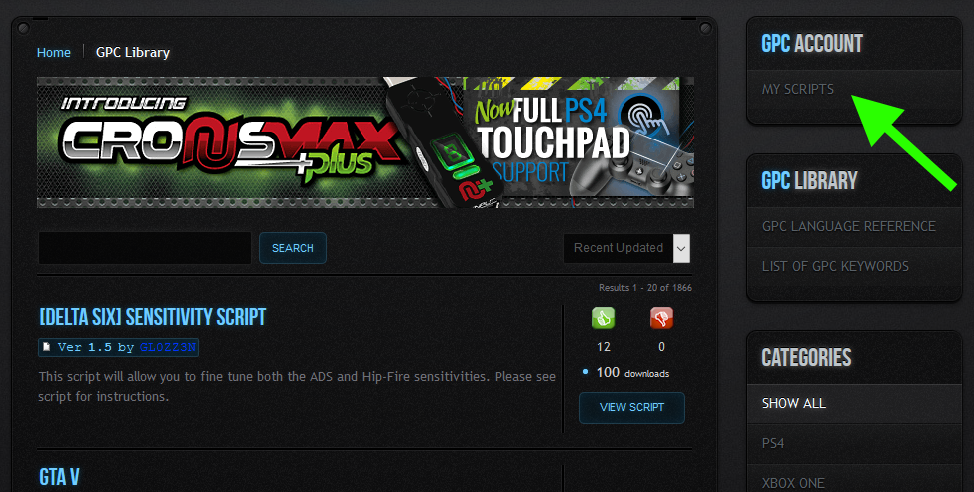
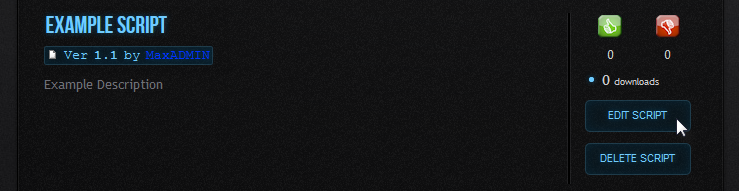
You will now see all of the scripts that you have uploaded with your forum account. Go to the one that you wish to edit (or delete) and click the desired button. In this case I have selected 'Edit'.
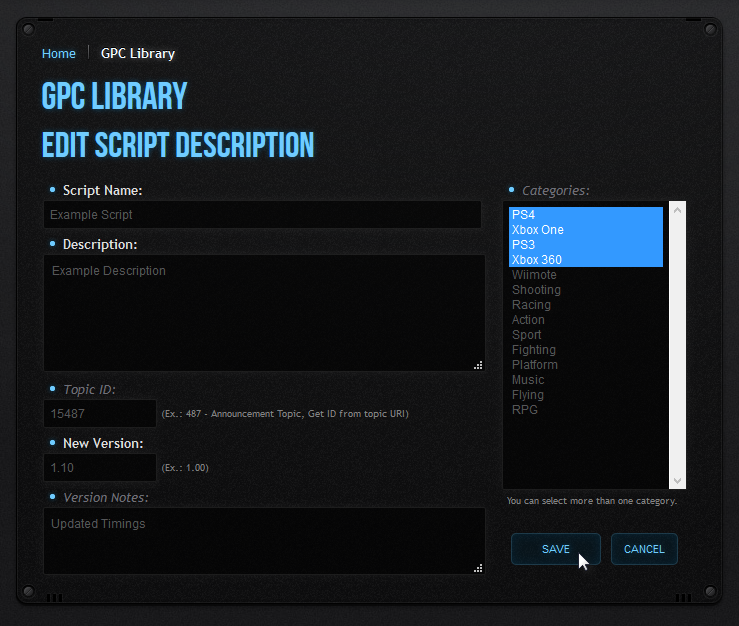
With this particular edit I simply added the Forum ID of the support thread that I had created, but you can also change the Script Name, Description, version Number, Notes and Categories.
Once you're happy with any edits you've made, click the 'Save' button.
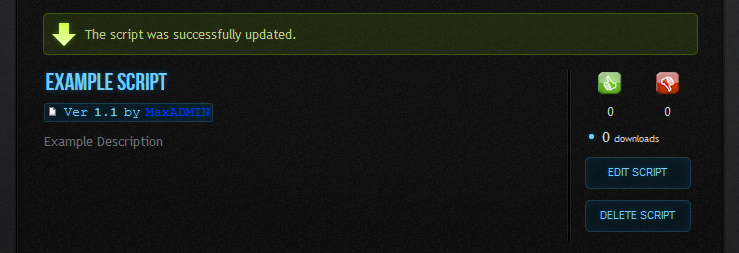
Your script has been successfully updated.
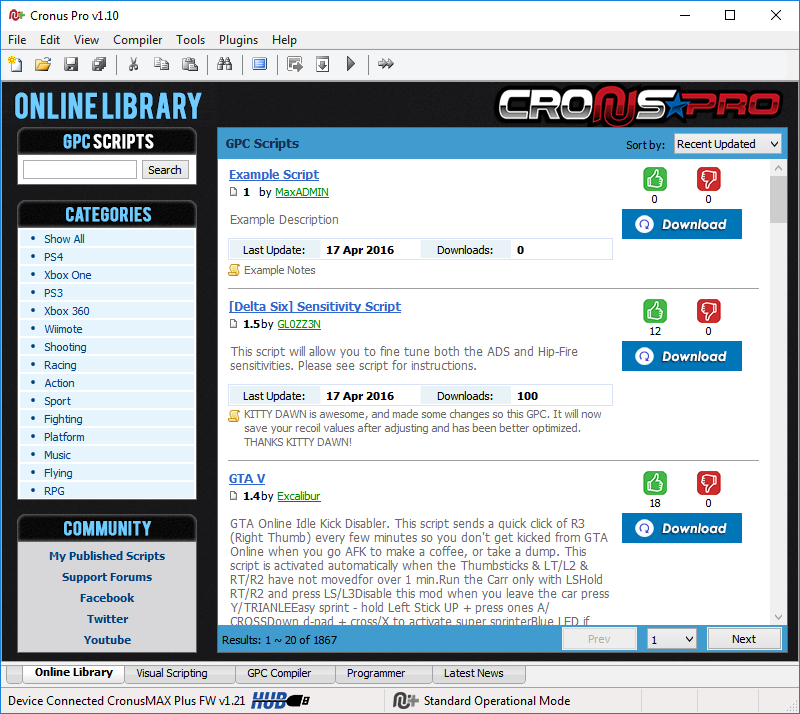
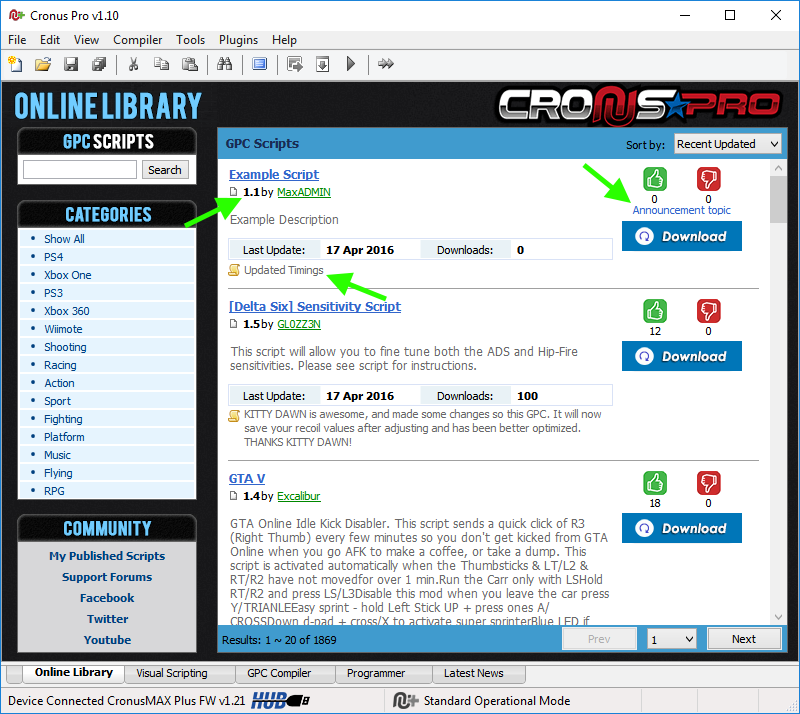
As you can see from Cronus PRO, the script now has an updated Version number, Updated Notes and an Announcement Topic linking directly to the Support Forum Thread that I created.