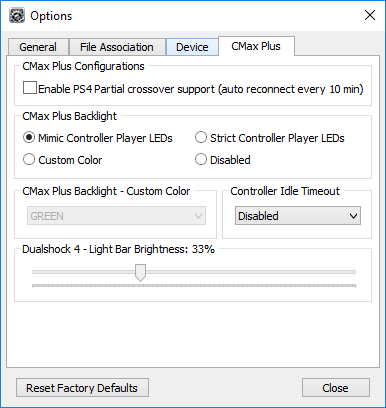
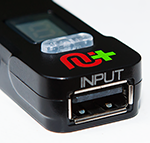
Select the CMax Plus Tab and make sure the box to the left of 'Enable PS4 partial crossover support (auto reconnect every 10 min)' is NOT checked.
We also recommend you select the 'Mimic Controller Player LEDs' option if you have CronusMAX PLUS v3 device. This is especially useful if you plan on using our GamePacks.
You can now close the Options window and disconnect your CronusMAX PLUS from your PC.
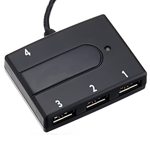
If you do not know the USB hub port numbers, click here for a guide on how to discover the port assignments.
TIP
Some USB Hubs prefer the Cross Over controller to be on Port 3, just make sure that when you power cycle the console that the CronusMAX PLUS completely shuts down (No LED) and doesn't sit in standby mode (Spinning Animation LED), otherwise on reboot the authorization won't work correctly. Note: To correctly shut down the console, usb hub and CronusMAX PLUS, power cycles must be done from the console, not the controller.
If you get this error code you have not updated to the latest firmware (at least v1.21). You must do that before you proceed.
WARNING
If the LED on the CronusMAX PLUS does not change from AU to a number then the authorization controller is not authenticating. 9/10 we find that this means the Micro-USB cable to the controller is faulty or not full data or simply not compatible, you should try another one. Also make sure the controller is powered on of course - that's a rookie mistake.
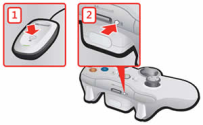
Sync your Xbox 360 Wireless Controller with the Wireless Receiver
This step needs to be performed only the first time as the information is then permanently stored, you can skip straight to Step #7 in future.
• On the front of the controller, firmly press the large Guide button in the center. The controller will turn on, the Guide button will light up and green lights will flash around it.
• Press the connect button on the Wireless Gaming Receiver. The light will flash green. On the controller press the connect button, it is on the side, roughly in the middle, between the two shoulder triggers.
• The lights on the controller will flash and revolve to show it is searching for the Wireless Receiver. Wait until the lights stop flashing and remain on in one of the quarter sections around the Guide button.
After a couple of seconds the display on the CronusMAX LED will go from the Authentication 'AU' Animation to 0 (or a number if slot recall is enabled and a script was previously loaded) - indicating that the controllers are authorized and you're ready to play. At this point you can use your controller through the CronusMAX PLUS and also load any scripts or GamePacks. It's that simple!
Don't forget to use the PS4 Crossover Essentials GamePack to make sure all the Xbox 360 Buttons are mapped correctly to DualShock 4 functions such as Touchpad and Share Screen.
NOTE
The Authentication controller will be disabled. It will not vibrate and none of it's controls will interefere with your Crossover experience. It can safely be left sitting idle on a surface as if it was turned off.
WARNING
If the LED on the CronusMAX PLUS does not change from AU to a number then the authorization controller is not authenticating. 99% of the time, this means either you didn't set the Output Protocol to AUTOMATIC in Step 1 of the instructions, or the Micro-USB cable to the controller is faulty or simply not compatible, you should try another one. Another issue that sometimes comes up is that the controller USB port has a loose data pin. It will charge fine, but won't transmit data. Also make sure the controller is powered on of course - that's a rookie mistake.
If you find that the controller disconnects at random times, and you are sure everything is setup correctly, then the USB cable is obviousley losing its connection between the authorization controller and the CronusMAX. This can be caused by a poor quality USB cable, the USB socket on the authorization controller itself is loose, or the USB hub you are using is poor quality. Check all connections and replace any parts if necessary.