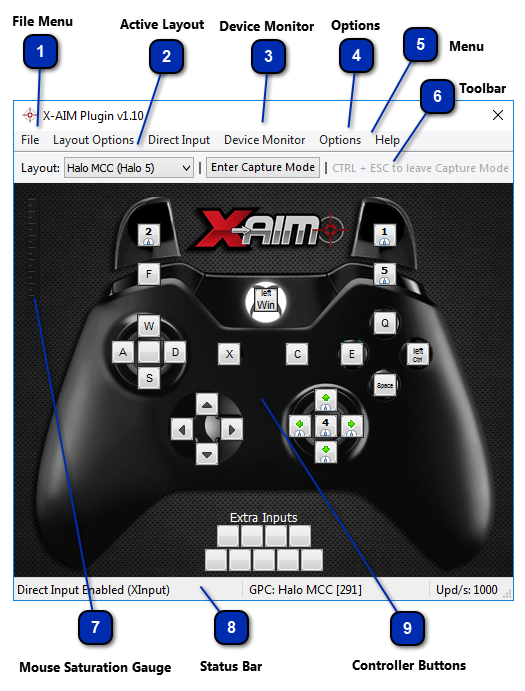
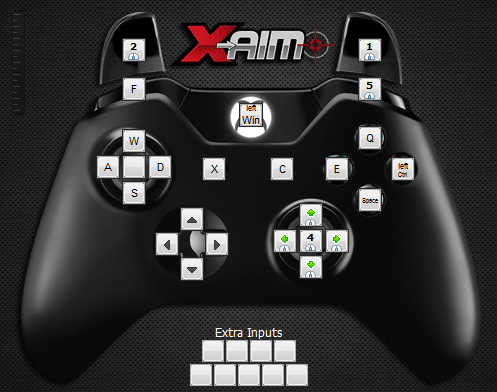
A layout describes how the X-AIM engine should map the keyboard, mouse buttons and Direct Input entries to the controller's buttons and how the mouse movements should be translated to the controller's analog stick. A layout can also contain the bytecode of a GPC script for advanced customization, one button press macros, automation of commands, event reaction and more.
X-AIM supports multiple layouts for multiple games settings, as every game needs different button mapping as they all have different stick dead-zones, geometrics, variable sensitivity, acceleration regions, asymmetric sensitivity and non-linear movement.
IMPORTANT
When running X-AIM and Capture Mode, make sure you have any other programs closed down, especially web browsers such as Firefox, as this may cause lag. You want the signal between your Keyboard and Mouse to your console to be as clean as possible.
File Menu
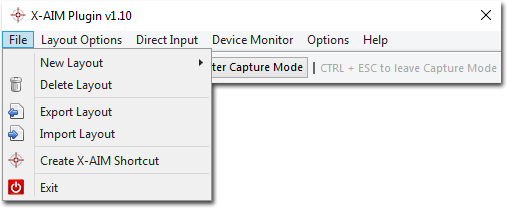
The File menu contains a set of operations for layout management, as follows:
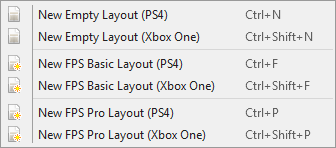
• New Layout: Create brand new empty layouts, with default mouse settings for both PS4 and Xbox One. Also includes options for FPS layouts, with some buttons mapped (movement, aiming, jump button, d-pads). These operations can also be performed through via keyboard shortcuts. A dialog box will popup to enter the layout name.
• Delete Layout: Delete the current active layout. A warning message will be shown to confirm the deletion. This operation cannot be reversed.
• Export Layout: Layout exporting enables you to share layouts with your friends and also to have a backup copy. The exporting combined with import operation can be used to clone a layout, this may help on the creation of a new game layout, since the basic configuration is already done.
• Import Layout: Import an X-AIM layout file. The imported layout may need be renamed if the original name is being used by another layout.
• Create X-AIM Shortcut: Create a shortcut that will open X-AIM directly. You can save the shortcut anywhere on your computer.
The layout combo box contains all available layouts, select the layout you wish to configure or for the game you are currently playing. The active layout is also used with export and delete operations.
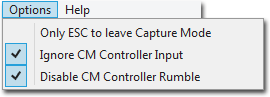
• Only Esc to leave Capture Mode - Toggle between Esc or Ctrl+Esc as the shortcut key to leave Capture Mode.
• Ignore CM Controller Input - Essential when using Keyboard and mouse as it ensures that no values are read from the authentication controller which can adversely affect the performance of the mouse. This way you don't have to disconnect the controller and the values are guaranteed to all start from zero when setting up your mouse. Note: If you are going to use your controller at the same time as your mouse, you should untick these options after you have setup your mouse or the controller will not work.
• Disable CM Controller Rumble - Disables all rumble motors from the controller that is connected to the CronusMAX Input port.
The menu bar has a set of drop down menus for easy access to all X-AIM functions, such as creating and exporting layouts, configuring mouse settings, Direct Input settings, accessing Cronus PRO plugin integration tools, displaying help documentation, interacting with the application and so on.
• File Menu: The File menu contains a set of operations for layout management.
• Layout Options: Menu with a set of tools and operations for configuration of active layout.
• Direct Input: Enable/Disable Direct Input and game controller settings for Direct Input.
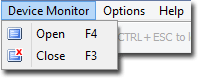
• Device Monitor: Gives access to Cronus PRO's Device Monitor, this menu is available only in plugin mode.
• Help Menu: The help menu gives you links to our website, to the X-AIM online support community and access to this manual.
The first control in the toolbar is a combo box which lists all available layouts, the active layout can be changed depending on the game you are playing. The "Enter Capture Mode" button will trap your keyboard and mouse inputs, so you can game without interfering with the computer's UI/OS. The message on the leftmost side will be highlighted when in capture mode, it is a hint for how to stop the capture mode.
In Capture Mode this gauge will fill green as you move the mouse, representing the current mouse speed. This visual indicator goes red when the mouse speed is saturated, meaning moving the mouse even faster will have no effect in game.
The Status Bar is an information area of X-AIM, found at the bottom of the main window. The status bar is divided into sections, each of which shows different information. The very first section displays information about the Direct Input and the capture mode. The second section, in the middle, shows information about the loaded GPC script.
The last section displays the updating rate, in other words, how many times per second a data report is sent to the console. The higher this value the better. X-AIM doesn't impose any limit besides the maximum 1000 reports per second of USB architecture. The updating rate only depends on your computers performance.
The buttons, overlapping the controller image, besides showing the mapping assignments, can also be used to operate the console by clicking on as if you were pressing the controller buttons. You can actually see this feature in action by opening the Device Monitor and checking the output fields while clicking on the X-AIM buttons.