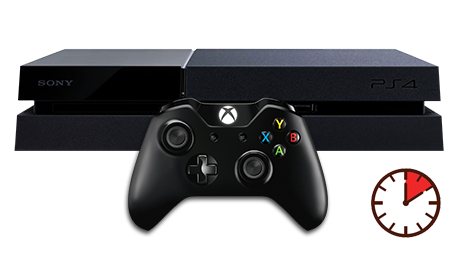
After a couple of seconds the display on the CronusMAX LED will go from the spinning Standby Animation to 0 (or a number if slot recall is enabled and a script was previously loaded) - indicating that the controllers are authorized and you're ready to play. At this point you can use your controller through the CronusMAX PLUS and also load any scripts or GamePacks. It's that simple! NOTE: If there is no response from your Crossover controller but the CronusMAX LED displays 0, then you should follow this Xbox One Troubleshooting Guide.
Don't forget to use the PS4 Crossover Essentials GamePack to make sure all the Xbox Buttons are mapped correctly to DualShock 4 functions such as Touchpad and Share Screen. If you have an Xbox Elite Controller, click here for a special version of the Crossover GamePack.
CONTROLLER DISCONNECTING?
If you find that your Xbox One controller disconnects at random times there are several things to check that should solve the problem.
1. Make sure you unpair the Authorization controller from the console correctly (in this case that will be a DualShock 4 controller as you are using a PS4 console). Click here for detailed instructions.
2. The USB cable could be losing its connection between the Xbox One controller and the CronusMAX. This can be caused by a poor quality USB cable, the USB socket on the controller itself is loose, or any USB extension cable you may be using with the Xbox One controller is poor quality or too long. Check all connections and replace any parts if necessary.
3. You powered on the console with the controller. Don't do that as the console will sync with the controller and the security ID will pass to the console and not the CronusMAX PLUS. Always power on the console with the consoles power button.
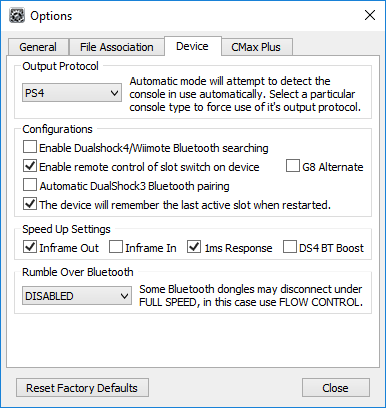
4. Go to Step 1 in this guide and make sure 'Inframe In' is disabled and also try disabling the '1ms Response' and 'Inframe Out' options too. This sometimes solves any disconnecting problems.